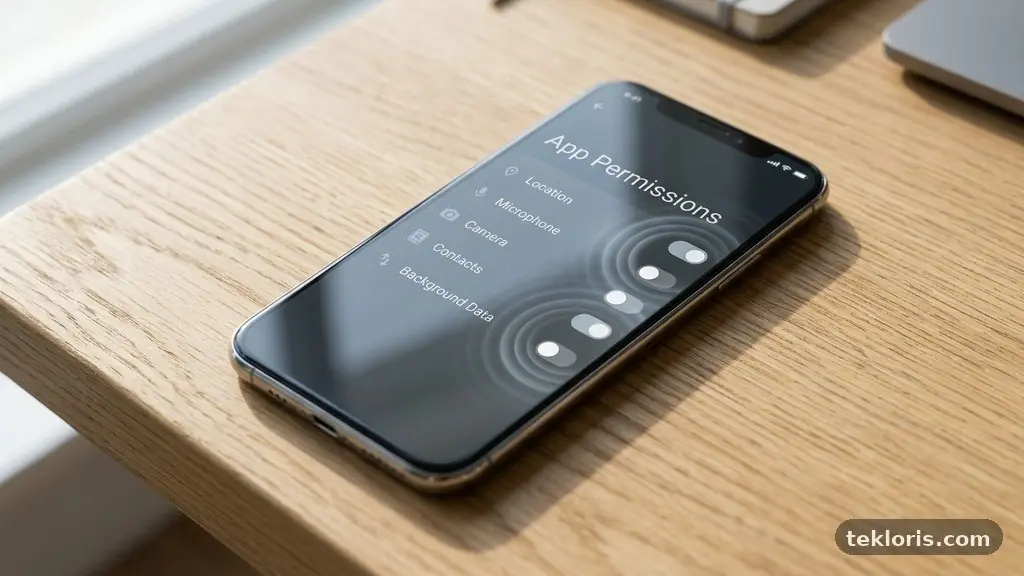
The practical answer to what happens when you disable app permissions you no longer need is reassuring: the app usually keeps working, but it loses access to specific information or hardware. A weather app may stop seeing your location, while a shopping app can still display products and process an order.
Removing unnecessary access strengthens data privacy, reduces unwanted tracking, and gives you a clearer say over how your phone behaves. The key is knowing which permissions are essential, which are optional, and how to restore one safely if a useful feature stops working.
The Immediate Effect on Your Phone
When you turn off an app permission, the operating system blocks that app from using the protected resource covered by the setting. The change is usually immediate, although an app that was already open may need to be closed and reopened before the new rule becomes obvious.
For example, disabling a camera permission prevents a social media app from opening the camera through its in-app capture button. It doesn’t remove the phone’s camera, delete your existing photographs, or stop other approved apps from using that hardware.
The same principle applies to location access, microphone permission, contacts access, and photo and video access. A navigation app may lose live directions, a voice recorder may stop recording, and a messaging app may no longer suggest people from your address book.
Disabling access normally does not uninstall the app or erase its account data. It changes what the app is allowed to request from the phone, not what is stored on the developer’s servers or inside the app’s own account system.
Some apps respond gracefully by showing a notice and offering a button to change the setting. Others simply hide a feature, show an error, or ask for permission again the next time you use that function.
| Permission removed | Likely effect | What usually keeps working |
|---|---|---|
| Location access | Maps, local recommendations, or automatic location tagging may stop | Account features, browsing, and saved content |
| Camera permission | In-app photos, scanning, and video capture may be unavailable | Other apps with camera approval |
| Microphone permission | Voice messages, calls, dictation, or audio recording may fail | Text features and non-audio content |
| Contacts access | Friend suggestions and address-book invitations may disappear | Manual username or number entry |
| Photo and video access | Uploading or selecting media may be restricted | Other files and app content, depending on the system |
Modern operating systems also distinguish between different levels of access. An app may receive approximate rather than precise location, selected photos rather than the entire library, or one-time permissions that expire after a particular use.
Why Removing Unneeded Access Improves Privacy
Every permission creates a possible route between an app and information on your device. Granting access doesn’t prove that an app is misusing it, but reducing unnecessary access limits what the app can collect if its behaviour changes, its advertising partners change, or its account is compromised.
Location access illustrates the difference clearly. A restaurant app may need your location while you search for nearby branches, but it may not need background location throughout the day. Switching that access to “only while using the app” prevents continuous location requests when the app is sitting unused.
Background location is especially sensitive because it can reveal routines rather than one isolated place. Repeated records may suggest where you live, work, worship, exercise, or spend your evenings, even if you never type those details into the app.
Microphone permission deserves similar caution. A video editor may need microphone access to record narration, but a simple calculator has no obvious reason to receive it. On many phones, privacy indicators make microphone or camera activity visible, yet prevention is stronger than relying only on alerts.
Contacts access can expose information about people who never agreed to share their details with an app. Removing it may stop automatic friend-finding, but you can often invite someone manually by entering a phone number, email address, or username.
These choices support a broader privacy habit: allow an app to access the smallest amount of information needed for the task in front of you. A taxi application may need location during a journey, but that does not automatically justify permanent tracking or access to your entire address book.
For a useful explanation of how permission decisions work on Android, consult the official Android app permissions guidance. It also explains how to review permissions and change them by category or by individual app.
What Changes on Android Devices
Android app permissions can be reviewed in the phone’s Settings app, commonly under Privacy, Security and privacy, or Permission manager. Menu names vary by manufacturer and Android version, but the underlying idea is consistent: you can see which apps have access to location, camera, microphone, contacts, files, and other protected features.
The Permission manager is useful because it reverses the usual perspective. Instead of opening every app one at a time, you can select “Location” or “Microphone” and see the entire group of apps that has requested that resource.
Android may offer choices such as “Allow all the time,” “Allow only while using the app,” “Ask every time,” or “Don’t allow.” The available choices depend on the permission, the Android version, and the app’s declared requirements.
One-time permissions are valuable for occasional tasks. If you need to let a delivery app find your current address once, choosing a one-time option can prevent that access from continuing indefinitely after the task is finished.
Android may also reset permissions for apps you haven’t used for an extended period. This behaviour is designed to reduce forgotten access, although the exact presentation can differ between devices and software updates.
Disabling storage permission may affect older apps that expect broad access to files. Newer Android versions often use more limited file pickers or scoped storage, allowing an app to work with a selected document or image without seeing every file on the device.
The most practical Android review starts with high-impact permissions. Check apps that have “all the time” location access, permanent microphone or camera approval, broad file access, and contacts access even though you rarely use their social features.
- Open Settings and search for “Permission manager” if the privacy menu is hard to locate.
- Review location, camera, microphone, contacts, and photo or video access separately.
- Replace permanent access with “while using” or “ask every time” where appropriate.
- Remove permissions from apps you no longer use, then uninstall those apps if they serve no purpose.
- Recheck permissions after a major system update or after installing a feature-heavy app.
If an Android app stops working, restore only the permission linked to the broken feature. There is no need to give the app every requested permission simply because one setting became necessary.
What Changes on an iPhone
iPhone app permissions are managed through Settings under Privacy & Security, with separate categories for Location Services, Contacts, Photos, Camera, Microphone, Bluetooth, and other data types. You can also open an individual app’s settings to inspect the permissions it has requested.
Apple often provides fine-grained choices rather than a simple yes-or-no switch. For photos, you may be able to give an app access to selected images instead of your whole library, which is useful when uploading one profile picture or submitting one document.
Location controls may include Never, Ask Next Time Or When I Share, While Using the App, and Always. The exact wording can vary, but the important distinction is whether the app can see your position only during active use or also in the background.
Turning off an iPhone permission doesn’t delete the related content. Refusing Photos access won’t erase pictures from the Photos app, and removing Contacts access won’t delete names from your address book.
A blocked permission may still produce a clear prompt when you try to use the related tool. For instance, a banking app can continue showing balances after camera access is removed, but its cheque-deposit scanner may ask you to approve the camera before it can capture an image.
iPhone privacy settings also include indicators and reports that can help you understand access patterns. App Privacy Report can show domains contacted by apps and information about sensor or data access, though it is not a perfect audit of every business practice.
Bluetooth access is another setting people sometimes overlook. A fitness app may need it to connect with a heart-rate monitor, while a note-taking app generally has no obvious need for nearby-device access.
When an iPhone feature fails after a permission change, check the app’s specific entry in Settings rather than switching on every category. That small habit preserves the privacy benefit while solving the actual problem.
Features That May Stop Working
Permission changes are not always visible until you use a particular feature. An app can appear completely normal for days after access is removed, then fail when you attempt a task that depends on a sensor, file library, or personal data source.
Navigation and local search are common examples. Without location access, a map app may still let you search for an address, but it may not show your blue-dot position, calculate a route from where you are, or recommend nearby businesses automatically.
Camera and microphone controls affect more than obvious camera apps. Video conferencing, document scanners, augmented-reality games, social platforms, language-learning tools, and customer-support apps may all request these permissions for specific features.
Photo and video access can be limited without breaking the rest of an app. You might still receive messages or browse a feed, but the attachment button may show an empty gallery or only the items you previously selected.
Storage permission is more complicated because Android versions handle files differently. An app that saves downloads into a dedicated folder may continue working, while an older file manager or media editor may need broader access to locate content in shared storage.
Notifications are technically a separate permission on many systems, but they affect how an app feels after other permissions are removed. If you turn off notifications as part of a privacy clean-up, you may miss delivery updates, security warnings, or calendar reminders even though the app itself remains functional.
Signs that a permission is genuinely necessary
A permission is more defensible when it supports a feature you actively use and the timing makes sense. A barcode scanner asking for camera access when you tap “Scan” is easier to justify than a basic game requesting contacts during its first launch.
Watch for a clear explanation, a relevant prompt, and a setting that lets you choose limited access. Vague requests, repeated prompts for unrelated features, or a demand for permanent access deserve more scrutiny.
Before denying access, consider whether the app offers a manual alternative. Entering a postcode, selecting a file through a system picker, or typing a recipient’s address may take a few seconds but avoid granting broad access.
How to Review Permissions Without Breaking Useful Apps
A permission audit works best as a short, deliberate process rather than a mass shutdown. Start with apps you rarely use, apps from unfamiliar developers, and apps that request sensitive access despite offering simple functions.
Make a note of the app’s main purpose before changing anything. A ride-booking service, for example, may reasonably need location during a trip, while a wallpaper app may not need contacts, microphone, or continuous location access at all.
Review one permission category at a time. This makes cause and effect easier to identify because you can tell whether removing camera permission, rather than a separate location setting, caused a particular feature to disappear.
Take special care with authentication and accessibility tools. Password managers, security keys, screen readers, parental-control services, and device-finding tools may require unusual permissions that look excessive without context.
After making a change, open the app and test its normal tasks. Check sign-in, search, messaging, payments, uploads, navigation, and any emergency function you might need away from home.
If something breaks, restore the narrowest setting that fixes it. For location, try “while using” before “always”; for photos, try selected items; for a microphone, approve access only if the app’s call or recording function needs it.
Keep a simple record of unusual apps and decisions. A note such as “shopping app: no contacts, location only during use” can make future reviews quicker and help you spot a permission that quietly changed after an update.
- Start with sensitive categories: location, microphone, camera, contacts, and photos.
- Ask what task the permission enables and whether you actually use that task.
- Choose limited, one-time, or while-using access whenever the device offers it.
- Test the app’s key function immediately after changing the setting.
- Restore a permission only when a specific feature needs it.
Permission reviews are also a good time to delete abandoned accounts and remove apps you haven’t used in months. An app with no current purpose gains nothing from retaining a place on your phone or a standing request for access.
The Trade-Offs and Limits of Permission Controls
Disabling access is powerful, but it isn’t a complete privacy solution. An app may still collect information you voluntarily enter, observe activity within its own service, use advertising identifiers, or receive data from account partners.
For example, blocking location access prevents the phone from sharing its location through that permission, but it does not necessarily hide the city you type into a search box. An online retailer can also infer broad regional information from an IP address, delivery address, or payment details.
Permission controls can create inconvenience when used too aggressively. Refusing all photo access may make it harder to submit an insurance image, while denying microphone access during a telehealth appointment could interrupt an important conversation.
Some apps combine several functions under one permission. A messaging service may use camera access for video calls, document scanning, profile images, and QR codes, so removing it can affect more features than you expect.
Privacy and convenience are not all-or-nothing choices. One-time permissions, approximate location, selected photo access, and “ask every time” options let you preserve a useful function without granting a permanent, broad entitlement.
Permission prompts also deserve a pause before approval. A request can be legitimate and still be too broad for your intended use, especially if the app asks for access before you have opened the related feature.
Finally, remember that disabling a permission doesn’t always revoke information already collected. If you want data removed from an account, read the service’s privacy controls or deletion process separately and submit a request where appropriate.
What to Do After You Change a Setting
Give the change a few minutes of ordinary use before deciding whether it caused trouble. Some apps cache a location, image list, or contact result and continue displaying it until the next refresh, so the effect may not appear instantly.
When a feature fails, read the exact message instead of accepting a blanket request. “Allow camera to scan this document” gives you useful context; a general prompt asking for camera, contacts, and location at once is a reason to inspect each category separately.
Check whether an app update changed its design or requirements. Developers sometimes move a feature, replace a system picker, or add a new sign-in method, and the timing can make a normal software change look like a permission problem.
Restarting the app is often enough after changing camera, microphone, or location access. If that doesn’t help, restart the phone, update the app from its official store, and then review the permission again.
Don’t grant access under pressure. A food-ordering app can wait while you decide whether it needs precise location, and a game can be played later if its optional social features demand contacts access.
For sensitive apps, combine permission review with other controls. Use a strong account password, enable multi-factor authentication, limit notifications shown on the lock screen, and remove third-party account connections you no longer recognise.
The strongest result comes from repeating the process occasionally rather than treating it as a one-time clean-up. New apps, system updates, and redesigned features can all introduce fresh requests, while old apps may remain installed long after their purpose has disappeared.
Frequently Asked Questions
Will disabling a permission delete my app or account?
No. Turning off app permissions normally changes access to a phone resource, not the app installation or your online account. You may lose a feature that depends on the permission, but saved messages, subscriptions, and account information usually remain intact.
Can an app ask for the permission again?
Yes. An app can request access again when you use a related feature, although the operating system may change how often it shows prompts after repeated refusals. You can approve limited access, reject the request, or open system settings to make a more specific choice.
Is it safe to disable background location?
For many apps, yes, particularly if you only need location while actively using them. Navigation during a trip, location-based reminders, device-finding tools, and safety services may need background access, so test those functions before relying on them.
What happens if I remove camera or microphone access?
The app won’t be able to use that sensor through the operating system. Video calls, voice messages, scanning, recording, and in-app photography may stop, while text, browsing, and other unrelated functions generally continue.
Should I deny every permission an app requests?
No. Deny access that lacks a clear purpose, but allow a narrowly limited permission when it supports a feature you genuinely need. One-time, selected-content, approximate-location, and while-using options often provide a better balance than approving everything or blocking everything.
Make Permission Changes Work for You
The practical result of what Happens When You Disable App Permissions You No Longer Need is usually simple: the app loses a defined capability, while the rest of the phone remains usable. Start with location access, microphone permission, camera permission, contacts access, and broad photo or storage access that no longer matches how you use an app.
Review the setting, test the feature, and restore only what proves necessary. That small routine keeps privacy controls practical, reduces forgotten access, and lets you use your phone with more confidence rather than more worry.