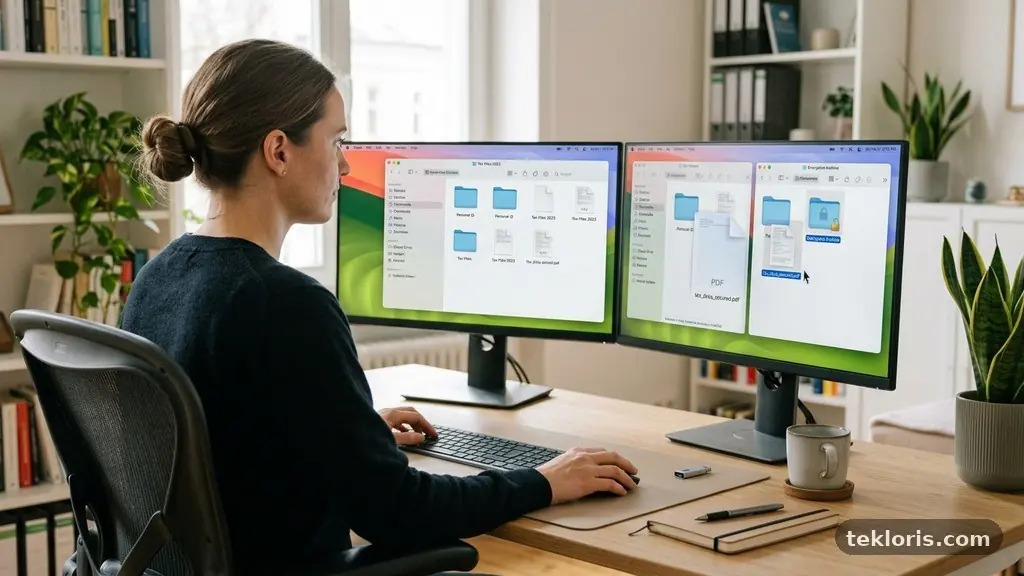
Separating Work Files From Personal Documents on Your Computer makes everyday tasks easier, protects private information, and reduces the risk of sending the wrong attachment to the wrong person. A clear divide also matters when you change jobs, share a device, work with sensitive client material, or need to hand a computer to IT support.
The practical answer is simple: use distinct top-level folders or separate user accounts, apply consistent file naming conventions, and store work documents in an approved business location. The right setup depends on whether the computer belongs to you, your employer, or a shared household, but a small amount of planning can prevent a great deal of confusion later.
Start With a Clear Boundary
The first step in separating Work Files From Personal Documents on Your Computer is to create a firm boundary between the two categories. On a personal computer, that usually means making two top-level folders such as Work and Personal rather than scattering documents across Downloads, Desktop, and random folders.
On Windows, you can create these folders in File Explorer under Documents. On a Mac, macOS Finder offers the same approach, with separate folders inside your home directory or Documents folder.
| Type of material | Recommended location | Example |
|---|---|---|
| Work documents | Work folder or approved business cloud storage | Work/Clients/Acme/Invoices |
| Personal records | Personal folder or private cloud storage | Personal/Finance/Tax Records |
| Temporary downloads | Downloads, then moved promptly | Signed contract received by email |
| Shared household files | Dedicated shared folder or account | Shared/Household/Insurance |
Give the folders names that are obvious at a glance. “Work Stuff” and “Important Things” may make sense today, but Work, Personal, and Shared remain understandable months later.
Keep the division visible at the top level rather than hiding it several clicks deep. If a document appears on your Desktop, you should know immediately which side of the boundary it belongs to before opening or sharing it.
A basic separation might look like this:
- Work — projects, clients, reports, invoices, meeting notes, and templates.
- Personal — household records, education, travel, receipts, and private correspondence.
- Shared — documents intentionally used by family members or collaborators.
- Archive — older material retained for reference, subject to your retention rules.
That structure is not complicated, and it creates a useful pause before files are attached to emails, uploaded to portals, or copied to removable drives. Simple boundaries are often more reliable than elaborate systems that nobody follows.
Audit the Files You Already Have
Before moving anything, spend time finding where your current documents actually live. Check the Desktop, Documents, Downloads, cloud-sync folders, email attachments, USB drives, and folders created by programs such as Adobe Acrobat or Microsoft Office.
Use search rather than relying only on memory. Windows File Explorer and macOS Finder can search by filename, file type, date modified, and sometimes text inside a document, which helps reveal old contracts, spreadsheets, scans, and exported PDFs.
Sort the material into four temporary groups: work, personal, shared, and uncertain. The uncertain group matters because guessing can create a privacy problem, especially when a file contains both business and personal information.
Review sensitive material first
Prioritise documents containing bank details, tax numbers, identity records, medical information, passwords, customer information, or employment records. These files should not remain in a general Downloads folder while you work through the rest of the computer.
Look for duplicate copies before moving anything. A proposal might exist in an email attachment, a Desktop folder, OneDrive, and a USB backup, with each version carrying a different date or revision.
Keep the newest confirmed version and decide what to do with the others. If older versions are legally or operationally important, place them in a clearly labelled archive rather than deleting them casually.
Use file properties carefully
File names do not tell the whole story. Word documents, PDFs, photographs, and spreadsheets can contain author names, comments, tracked changes, location information, or hidden document properties.
Before sharing a file externally, inspect comments and revision history. A document that looks finished on screen may still reveal internal notes when opened by a recipient.
Once the audit is complete, move files in batches instead of dragging thousands of items at once. Confirm that the destination opens correctly, then repeat the process for the next category.
Document the decisions you make for unusual files. A short note such as “client template retained in Work/Shared Templates” prevents you from reconsidering the same question during the next cleanup.
Build a Folder Structure That Scales
A good folder structure reflects how you work, not how a software menu happens to be arranged. Work files are usually easiest to find by client, department, project, or year, while personal documents often make more sense by life area or household function.
For example, a freelancer might use Work > Clients > Northwind > Website Redesign > 2026. A household folder might use Personal > Finance > Taxes > 2025 or Personal > Home > Utilities.
Avoid excessive nesting. If someone must open eight folders to reach a routine invoice, the system is too deep and will encourage people to save files elsewhere.
| Purpose | Useful folder pattern | Why it helps |
|---|---|---|
| Client work | Work/Clients/Client Name/Project | Keeps related deliverables together |
| Internal operations | Work/Business/Admin or Work/Business/Finance | Separates administration from client output |
| Personal finance | Personal/Finance/Year/Category | Makes annual records easier to retrieve |
| Household records | Personal/Home/Property or Personal/Insurance | Groups documents by practical need |
Use a dedicated folder for incoming material, such as Work/Inbox or Personal/To File. Review it on a schedule and move each item to its permanent home instead of allowing it to become a second Downloads folder.
Archive completed projects separately from active work. An archive can contain final deliverables, signed agreements, and key correspondence without crowding the folders used every day.
Do not use “final” repeatedly as a substitute for version control. Names such as “report-final,” “report-final2,” and “report-final-revised” make it difficult to identify the approved copy.
Set a short document management policy for yourself or your team. It can state where work files belong, who may delete them, how long records are retained, and which cloud storage service is approved.
Use File Names That Explain Themselves
Folder organization works best when file naming conventions carry useful information. A strong name tells you what the file is, which project it belongs to, and when it was created or approved without requiring you to open it.
A practical pattern is YYYY-MM-DD_Project_DocumentType_Status. For example, 2026-03-18_Northwind_WebsiteBrief_Approved.docx is more useful than brief new.docx.
Dates written year-month-day sort in chronological order on Windows, macOS, and most cloud platforms. Use leading zeroes for months and days so that March 8 appears as 2026-03-08 rather than 2026-3-8.
Choose terms before you need them
Decide whether your team will use “Approved,” “Draft,” “For Review,” or a numbered revision. Mixing “Final,” “Signed,” and “Complete” can create uncertainty about which status has priority.
Keep names reasonably short. Extremely long filenames may cause problems when a deeply nested folder is synced, copied, or uploaded to a system with a path-length limit.
Avoid characters that create trouble across platforms, including slashes and certain punctuation marks. Spaces are usually acceptable, but underscores or hyphens can make filenames easier to process in automated systems.
Use the same spelling for recurring names. If one folder says “Client Reports” and another says “Customer Reporting,” search results become fragmented even though the documents serve the same purpose.
File names should not contain passwords, full payment card numbers, or unnecessary personal information. A filename can appear in search indexes, backup logs, email previews, and shared links.
For personal records, names such as 2025-04-15_Home-Insurance_Policy.pdf or 2024_Tax_Return_Jordan-Smith.pdf are specific enough to find quickly. For work, add the client or project identifier and status, but avoid including confidential details that do not need to be visible.
Once a naming convention is chosen, write it in a small reference note and use it consistently. Consistency produces more value than a theoretically perfect naming system that people forget after a week.
Separate Accounts and Cloud Locations
Folders are often sufficient for one person using one computer, but separate user accounts create a stronger boundary. A work account and a personal account keep documents, browser profiles, saved credentials, application settings, and notifications from blending together.
This is especially useful on a shared family computer. Each person can have a standard account, while an administrator account is reserved for software installation and system changes.
On an employer-owned device, follow the company’s rules before creating or removing accounts. Some organizations use managed profiles, device encryption, remote administration, or required sign-in methods that should not be bypassed.
Choose cloud storage deliberately
Cloud storage is helpful when the service matches the owner of the files. Work material may belong in a company-managed OneDrive, Google Drive, Dropbox Business account, or another approved platform, while private records may belong in a separate personal account.
Do not assume that a folder named “Work” inside a personal cloud account meets an employer’s requirements. Ownership, retention, access permissions, audit logs, and the ability to remove access after employment may all matter.
Check which folders are synchronised locally. A cloud service can place work files on the computer even when you intended to use online-only storage, and a personal backup application may copy those files into another account.
Use separate browser profiles for work and personal accounts when practical. This reduces accidental uploads, limits confusing autofill suggestions, and makes it clearer which account is active before you share a document.
Shared links deserve careful attention. A link that allows “anyone with the link” to view a file may expose information beyond the intended audience, especially if the link is forwarded or posted in a public chat.
Review access permissions periodically. Remove former collaborators, close expired links, and verify that shared folders contain only the documents that need to be shared.
Protect Privacy, Security, and Backups
Separation reduces mistakes, but it does not replace security. Use a strong device password, automatic screen locking, encryption where available, and multi-factor authentication for work and personal cloud accounts.
The most useful backup rule is to keep more than one recoverable copy. A work folder that exists only on a laptop can disappear through theft, hardware failure, accidental deletion, ransomware, or a damaged operating system.
Keep backups separate from the main working copy. If a backup drive stays permanently connected and writable, malware or an accidental deletion may affect both the original files and the backup.
Test restoration, not just backup completion. Open a sample of documents from the backup and confirm that filenames, folder paths, and important versions are intact.
Protect the backup itself. Personal tax records and work contracts should not be left on an unencrypted drive in a car, and sensitive cloud backups should use an account with strong authentication.
Reduce accidental exposure
Turn off automatic syncing for folders that do not belong in a particular account. Check backup software settings after installing a new application, because some tools automatically include Desktop and Documents.
Clean out the Downloads folder regularly. Attachments can contain confidential information even when they were downloaded only to print or review them.
Use the operating system’s secure sharing controls rather than sending broad access invitations. Microsoft’s CISA security guidance also offers practical advice on passwords, multifactor authentication, and software updates.
When disposing of a computer, do not rely only on dragging files to the Recycle Bin or Trash. Sign out of cloud accounts, remove the device from account settings, erase the storage using the operating system’s reset tools, and follow your employer’s equipment-return process.
Good security is quiet and repetitive. A five-minute review of permissions or backup status can prevent a much larger recovery problem later.
Make the System Easy to Maintain
A file system survives only when it fits real habits. Choose a weekly or monthly review time to clear Downloads, process the Work Inbox, archive completed projects, and rename documents that were saved in a hurry.
Use a short checklist so maintenance does not depend on memory. A useful routine might include:
- Move new work documents into the correct project folder.
- Move personal records out of Downloads and email attachment folders.
- Delete obvious duplicates after confirming the retained version.
- Check cloud sync status and resolve failed uploads.
- Review shared links and access permissions.
- Confirm that the latest backup completed successfully.
Do not create a new folder every time a document feels difficult to classify. First ask whether an existing project, client, year, or category already covers it.
Use shortcuts or favourites to reach active folders quickly. Windows File Explorer lets you pin locations to Quick access, while macOS Finder can use the sidebar for frequently used directories.
Keep active and archived material visibly different. A folder named 2026 Active Projects beside Archive 2023–2025 tells you where new work belongs and reduces accidental edits to old records.
If other people use the system, explain the rules with examples rather than abstract instructions. “Save signed client contracts in Work/Clients/Client Name/Agreements” is easier to follow than “Store documents according to the file organization policy.”
Review the structure after a month. If people repeatedly create folders in the wrong place, the design may need adjustment, or the instructions may be unclear.
Handle Shared Computers and Job Changes Carefully
Shared devices need stricter separation because convenience can expose information. Separate user accounts are preferable to relying on a single login with folders that anyone can open.
Never leave work documents in a shared Desktop, public Downloads folder, or family cloud directory. A household member may not intend to view the files, but accidental access can still create a privacy or contractual issue.
Use access permissions when the operating system and storage service support them. Permissions should match the task: someone who needs to view a report may not need permission to delete, edit, or share it.
At the end of a contract or employment period, treat file separation as an exit task. Return employer-owned documents, remove local copies where instructed, sign out of managed services, and avoid copying work material to a personal drive for convenience.
Check synchronized folders on phones and tablets as well as computers. A work account may remain active on a personal device even after the main computer has been cleaned.
Personal documents require similar care when a computer is sold, repaired, or given to another person. Export what you need, verify the backup, remove account access, and use a full reset rather than leaving the next owner to discover old files.
Freelancers face a particular challenge because personal and business records may legally belong to different parties. Keep invoices, contracts, client data, receipts, and tax records in clearly labelled locations, and ask an accountant or solicitor about retention requirements when the rules are unclear.
A clean handover is easier when the system has always been separated. You can identify the relevant work folders without searching through family photographs, personal mail, or unrelated downloads.
Frequently Asked Questions
Should I use folders or separate user accounts?
Use folders for a single person who needs quick access to both categories, and use separate user accounts when other people share the computer or when work information requires stronger privacy. Many people benefit from using both: separate accounts for the main boundary and organised folders within each account.
Can work files and personal documents be stored on the same computer?
Yes, provided the arrangement follows your employer’s rules and the two categories have clear storage, access, and backup boundaries. A company may prohibit local storage entirely or require a managed device, so workplace policy takes priority over personal preference.
Is cloud storage safer than keeping files locally?
Neither option is automatically safer. A reputable cloud service can provide version history, access controls, and recovery tools, while local storage offers direct control; both require strong passwords, careful permissions, updates, and tested backups.
What should I do with files I cannot identify?
Place them in a temporary review folder and inspect the filename, source, date, and contents before moving or deleting them. Never open suspicious attachments merely to classify them, and do not share an uncertain file until you know who owns it and what it contains.
How often should I review my file organization?
A brief weekly cleanup works well for active work, while a deeper review every few months can catch duplicate files, stale permissions, and failed backups. Schedule an additional review before changing jobs, replacing a computer, or handing a device to someone else.
Keep the Boundary Simple
Separating Work Files From Personal Documents on Your Computer starts with two visible locations, sensible names, and a routine for processing new files. Add separate accounts, approved cloud storage, access permissions, and tested backups when the sensitivity or number of documents requires them.
Start today by creating the top-level folders, moving the most sensitive files, and checking where automatic syncing sends your data. A system that is clear enough to maintain will protect your privacy, speed up searches, and make future handovers far less stressful.