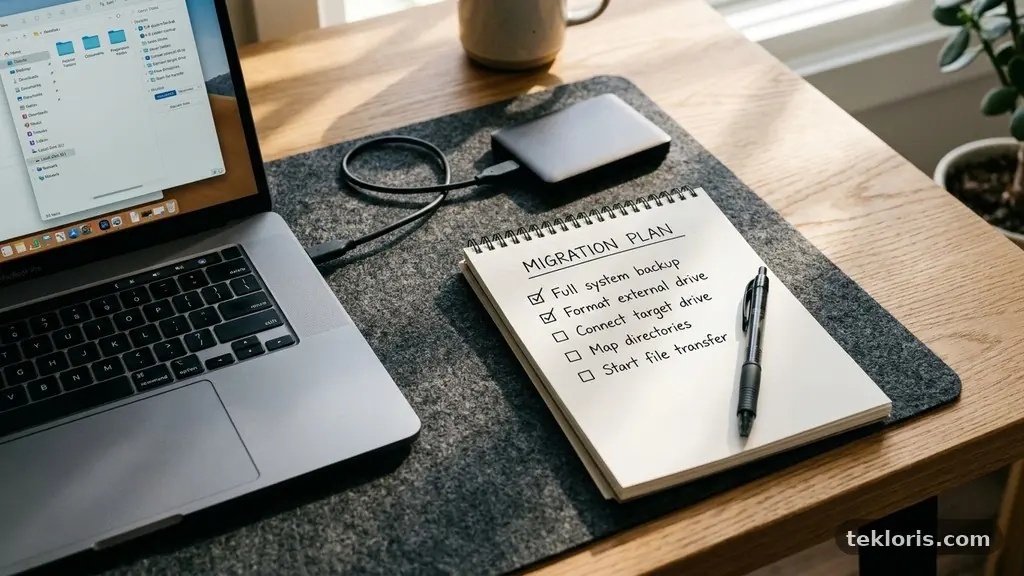
A careful “Check Before Moving Your Files to a New Computer” routine can save you from missing family photos, losing browser bookmarks, or discovering that an important program no longer works. The safest approach is to inventory what you own, create a verified backup, check compatibility, and transfer files in a controlled order.
That preparation also gives you a chance to remove duplicate files, update security settings, and confirm that your new machine has enough available storage space. A little planning turns a stressful handover into a clean start.
Start With a Clear Transfer Plan
The first thing to check before moving your files to a new computer is what actually needs to move. Don’t begin by dragging every folder from the old machine into a single destination, because that often carries over clutter, outdated downloads, and files that you no longer recognise.
Make a short inventory of your main data locations. Include the Desktop, Documents, Downloads, Pictures, Videos, Music, work folders, tax records, project directories, and any folders created by specialist software.
Next, write down the accounts and services connected to the old computer. Email accounts, cloud storage, password managers, photo libraries, messaging applications, and accounting tools may hold important information outside the usual folders.
Record the old computer’s operating system, the new computer’s operating system, and the amount of storage available on each device. A new laptop with a smaller solid-state drive may not have room for a complete copy of a much older machine.
| Item to check | Why it matters | Action before transfer |
|---|---|---|
| Available storage space | The new computer may be smaller than the old one | Compare used data with the new drive’s free capacity |
| Operating system compatibility | Older programs or file formats may not work properly | Check the developer’s current system requirements |
| File permissions | Copied files may open as read-only or become inaccessible | Test ownership and access after copying |
| Backup status | A transfer error can damage or omit important data | Complete and verify a separate backup first |
Give the transfer a simple order, too. A practical sequence is personal files first, application data second, browser and email settings third, and cleanup last.
Keep the old computer untouched until the new one has passed your checks. Do not recycle, sell, reset, or erase it just because the first file transfer appears to have finished.
Sort and Inspect Your Files
File organisation is one of the most valuable parts of a computer move. Years of use can scatter documents across several drives, desktop folders, USB flash drives, and application-specific locations.
Search by file type as well as by folder. Documents may end in DOCX, XLSX, PDF, or ODT, while photographs can appear as JPEG, PNG, HEIC, RAW, or TIFF files.
Look for duplicate files before transferring them. A folder named “Photos” may contain the same images as a cloud-synchronised folder, and a folder called “Old Laptop Backup” may already contain several copies of your documents.
Duplicate files aren’t always identical, so compare file names, sizes, dates, and contents before deleting anything. Tools that identify duplicates can help, but review their suggested deletions manually when the files involve legal records, photographs, or active work.
Separate active material from archives. For example, current invoices might move to the new computer, while five-year-old project exports could stay on an external hard drive or encrypted archive.
- Personal documents, scanned records, and financial files
- Photos, videos, music, and creative projects
- Work folders, templates, databases, and local project files
- Browser bookmarks, saved reading lists, and exported passwords
- Email archives, address books, and application-specific data
- Device drivers, license records, and installation files
Pay attention to hidden folders and application data. Some programs store templates, saved games, presets, or databases in locations that aren’t visible in a normal Documents folder.
Don’t assume that cloud storage contains every file you can see on the old computer. A synchronisation service may show online placeholders, exclude large files, or have stopped syncing because of an account error.
Use this stage to rename confusing folders and remove temporary downloads. A clean structure such as “Work,” “Personal,” “Photos,” and “Archive” makes the new computer easier to maintain from its first day.
Create and Verify a Backup
A file transfer is not the same thing as a backup. Moving files from one computer to another can fail because of a disconnected cable, a full destination drive, a damaged source file, or an interrupted migration software process.
Create at least one independent backup before starting the main move. An external hard drive is useful for a large collection, while cloud storage can provide protection against a local hardware failure.
For especially important material, use two different destinations. A local drive offers fast recovery, and a separate cloud copy protects against theft, fire, or physical damage affecting both computers.
Protect sensitive information with encryption. Many external drives support device encryption, and reputable cloud services offer encryption during transfer and storage, although you should still use a strong, unique account password and multi-factor authentication.
After the backup finishes, verify it rather than trusting the software’s success message. Open representative documents, play several videos, inspect photographs, and confirm that large folders contain the expected number of files.
Check the backup’s date and size against your inventory. If your old computer contains 300 gigabytes of personal data but the backup is only 40 gigabytes, stop and find out why before continuing.
A malware scan belongs in this stage, particularly if the old computer has behaved strangely, displayed unexpected pop-ups, or has not received security updates for a long time. Scanning before transfer reduces the risk of carrying a malicious file or infected installer to the new system.
For current advice on protecting devices and recovering from attacks, consult the CISA ransomware protection guidance. It explains why offline or otherwise isolated backups matter when files are targeted by ransomware.
Keep the backup disconnected once it has been verified, unless you need to restore something. A drive that remains permanently attached can be affected by the same malware or accidental deletion that damages the computer.
Choose the Right Transfer Method
The best file transfer method depends on how much data you have, how reliable your internet connection is, and whether the old computer still works properly. There is no single option that suits every move.
Cloud storage works well for documents, photos, and folders that already synchronise across devices. Sign in on the new computer, allow the files to download, and check that the service has completed synchronisation rather than showing only online placeholders.
An external hard drive is usually faster for hundreds of gigabytes or a large video library. It also gives you a physical copy that can remain useful after the migration, but it should be formatted in a way both computers can read.
A USB flash drive is convenient for a small number of files, such as a tax folder, browser export, or presentation. It is less suitable for a full migration because small drives fill quickly and are easy to misplace.
Direct computer-to-computer transfer can be efficient when both systems support it. Use a proper transfer cable or a trusted local network method rather than an improvised cable that was designed only for charging.
Migration software can copy user accounts, settings, and selected applications, but its results vary by operating system and program. Treat it as a helper, not as proof that every application, license, preference, and file permission has transferred correctly.
| Method | Best for | Common limitation |
|---|---|---|
| Cloud storage | Documents and synchronised personal folders | Needs sufficient online space and a stable connection |
| External hard drive | Large collections and full backups | Can be damaged, lost, or infected if handled carelessly |
| USB flash drive | Small, focused transfers | Limited capacity and easy to misplace |
| Migration software | Settings, user profiles, and guided moves | May not transfer older applications or licenses |
Don’t use several transfer methods without a plan. Multiple overlapping copies can create confusion about which version is newest, especially when filenames include vague labels such as “final,” “final2,” and “final-new.”
Check Compatibility, Programs, and Licenses
Files usually move more easily than software. A document can copy successfully and still fail to open if the new computer lacks the required program, font, plug-in, codec, or database engine.
Make a list of the applications you genuinely use. Include office software, photo editors, video tools, accounting programs, games, development environments, printers, scanners, and specialist workplace applications.
Check operating system compatibility before wiping the old machine. A program designed for an older operating system may need an updated version, a compatibility setting, or a replacement application on the new device.
Review software licenses and activation limits. Some programs allow installation on several computers but permit only one active device, while others require you to deactivate the old installation before signing in on the new one.
Save license keys, purchase receipts, subscription details, and recovery information in a secure location. Don’t rely on an old email account that may be difficult to access after the change.
Export application settings when the program supports it. Useful examples include custom brushes, keyboard shortcuts, templates, macros, presets, saved game data, and local email archives.
Printers and scanners deserve separate attention. The new operating system may need a current driver, and an older device might work only through a manufacturer utility that is no longer offered.
Test a small sample before moving your whole library. Open a spreadsheet with formulas, edit a recent photograph, play a video, and launch a project file from the software you use most often.
If the new computer uses a different platform, such as switching between Windows and macOS, research file formats and application replacements before the transfer day. Some programs can import their own files, while others require an export step on the old machine.
Protect Accounts, Privacy, and Permissions
A new computer is a good moment to review who can access your information. Files copied from one user profile to another may inherit unfamiliar file permissions, especially when the operating systems use different account structures.
After transferring, test important folders using the account you normally use. Confirm that you can open, edit, rename, and save files without repeatedly entering administrator credentials.
Browser bookmarks often transfer through account synchronisation, but don’t assume every browser uses the same account. Export bookmarks manually if they contain years of research, work portals, or saved reference pages.
Be cautious with saved passwords. A browser export may create a readable file containing highly sensitive credentials, so delete the export immediately after importing it and avoid storing it on a shared drive.
Set up email accounts carefully. Verify the incoming and outgoing server settings, folders, contact lists, signatures, calendar data, and local archives before removing the old device from your account.
Sign out of services that should no longer remain active on the old computer. This includes cloud drives, creative subscriptions, office suites, messaging tools, password managers, and remote-access programs.
Review encryption settings on the new device before storing confidential records. Full-disk encryption protects data if the laptop is lost, but it also makes your recovery key essential.
Keep recovery codes somewhere separate from the computer. A printed copy in a secure place or a protected password manager entry is safer than a text file sitting in the same folder as your documents.
Finally, change passwords if the old computer was shared, repaired by someone else, or exposed to suspected malware. The transfer should improve your security, not quietly extend access to a device you no longer control.
Transfer in Batches and Verify the Results
Move your files in manageable batches instead of copying everything at once. Start with a clearly named folder such as “Transfer Review,” then separate documents, photos, media, and archives inside it.
Batching makes errors easier to identify. If the photo transfer fails, you can repeat that part without disturbing your work documents or application settings.
Compare source and destination folders after each batch. Check the total size, file count, recent modification dates, and a selection of files from different subfolders.
Open important files directly from the new computer, not from the transfer drive. A file that works only while the external drive is connected may still be pointing to its old location.
Look for broken links in documents and projects. Spreadsheets, presentation files, design projects, and video-editing timelines may reference media stored in another folder that was not transferred.
Play videos from beginning to end when they matter. A damaged file may open normally but freeze several minutes into playback.
Inspect photographs at full size and check that dates, orientation, and metadata remain intact. This matters if you rely on image dates to organise family events or professional shoots.
Check search indexing after the move. The files may exist but not appear in searches until the new operating system has indexed the folders, particularly after a large transfer.
Keep a short migration log. Note which folders have moved, which applications have been installed, and which accounts still need testing.
Don’t erase the old computer until you have used the new one for several days or weeks. A missing template or forgotten archive often becomes visible only when a real task requires it.
Handle Cloud Files and Old Hardware Carefully
Cloud storage needs its own inspection because synchronisation can create misleading confidence. A folder may appear on the new computer while its contents remain online-only and unavailable without internet access.
Choose which files should be available offline. Travel documents, active work, emergency records, and frequently used reference material should generally be downloaded locally.
Check whether the cloud account has storage limits, file-size restrictions, or a device limit. A new computer may not sync until you approve it or remove an older device from the account.
Review sharing settings after the move. Some folders may be shared with colleagues or family members, and changing their location or ownership can alter how other people access them.
Old external drives should not automatically become disposal items. They may contain a second backup, old license records, original photographs, or files that were overlooked during the inventory.
If you plan to sell, donate, or recycle the old computer, sign out of accounts and remove personal data first. A normal file deletion is not always enough because deleted data can sometimes be recovered.
Use the computer manufacturer’s secure reset process when available. For an old hard disk, an appropriate secure-erasure method may be needed, while modern solid-state drives often require a manufacturer-supported secure erase or cryptographic erase process.
Before disposal, confirm that you have the recovery keys and backup copies you need. Once the old system is erased, recovering an overlooked file may be expensive or impossible.
Frequently Asked Questions
Should I move files or clone the entire old computer?
Move selected files when the new computer has a different operating system, different hardware, or a smaller drive. Cloning can be useful for replacing a drive with a similar system, but it may carry over obsolete software, malware, clutter, and hardware-specific drivers.
How much free space should the new computer have?
It should have enough room for the files you need, the applications you plan to install, and normal operating system activity. Avoid filling the drive completely, because updates, temporary files, and application caches need working space.
Can cloud storage replace a backup?
It can be part of a backup plan, but synchronisation alone isn’t always a backup. Deleting a file on one synchronised device may delete it elsewhere, so keep a separate versioned or offline copy of irreplaceable data.
What should I do with duplicate files?
Compare them before deleting anything. Keep the newest verified version when the content is identical, but preserve separate copies if they represent different edits, metadata, or project stages.
When can I wipe the old computer?
Wait until the new computer has passed real-world tests and you have confirmed your backup. Use the old system for a final search, especially through Downloads, application folders, email archives, and external drives.
Make the Move With Confidence
The best time to Check Before Moving Your Files to a New Computer is before the first cable is connected. Inventory your data, create a verified backup, check compatibility and licenses, then transfer in batches and test the results.
Keep the old machine available until the new one has proved itself through ordinary work. With that final safety net in place, you can enjoy the faster, cleaner computer without wondering what was left behind.