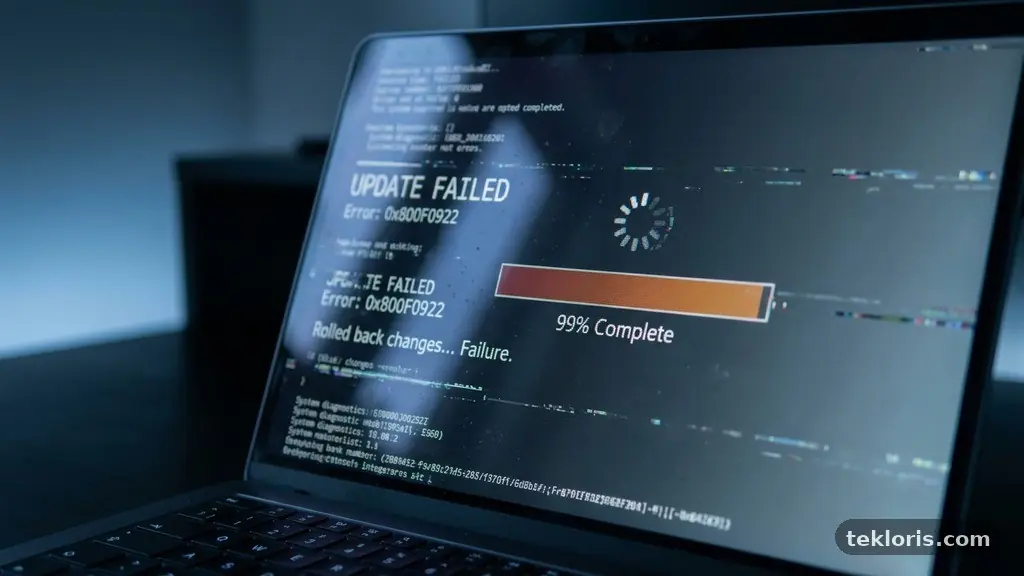
Automatic software updates usually work quietly, but the process can break for surprisingly ordinary reasons: a weak connection, a full drive, a damaged download, or a restart that never happened. Understanding why Automatic Software Updates Sometimes Fail and How to Troubleshoot Them helps you fix the immediate problem without disabling an important security feature.
The key is to identify where the update stopped, preserve your files, and change one likely cause at a time. A failed update isn’t always a serious system failure; often, it leaves a useful clue in an error message, notification, or system log.
Why automatic updates fail
Automatic updates fail when one part of a chain cannot complete its job. The device must contact an update service, verify its identity, download files, store them temporarily, check software compatibility, install the package, and often restart before the change becomes active. A failure at any stage can make the whole process appear broken.
The most common causes are internet connectivity problems, insufficient disk space, administrator permissions, firewall and antivirus interference, and a corrupted update cache. A laptop that briefly loses Wi-Fi during a large download may retry successfully, while a device with a damaged package may repeat the same failure every night.
Updates can also wait because the operating system is busy. A pending restart, an open application that locks a file, an encrypted drive awaiting confirmation, or another installation already running can delay the process without indicating that anything is permanently wrong.
Software compatibility creates a different class of problem. An update may require a newer operating system, a specific processor architecture, a supporting driver, or a prerequisite version that isn’t installed yet. In that situation, repeatedly pressing “try again” won’t solve the dependency problem.
Security tools add another layer. Firewall rules may block the update server, while antivirus software can quarantine a temporary installer because it behaves like a program changing protected files. That doesn’t mean the security tool is wrong, so disabling protection should never be the first response.
| Likely cause | Typical clue | First sensible action |
|---|---|---|
| Internet connectivity | Download pauses, times out, or restarts | Test the connection and retry on a stable network |
| Insufficient disk space | Installation stops near the end or reports storage trouble | Free space and remove only safe temporary files |
| Corrupted update cache | The same package fails repeatedly after downloading | Clear the cache using the platform’s supported repair method |
| Permissions | The update asks for credentials or says access is denied | Use an authorized administrator account |
| Compatibility | A specific error code names a version, driver, or requirement | Check the vendor’s requirements before forcing installation |
Start with safe checks
Begin by recording the exact notification, update error codes, and time of the failure. A message such as “installation failed” is broad, but a code containing a network, storage, or permission reference can narrow the search immediately.
Next, save open work and restart the device normally. A restart clears temporary processes, releases files held by an application, completes some pending maintenance tasks, and may resolve a pending restart that has been blocking the update.
Check the device clock as well. An incorrect date or time can interfere with encrypted connections and certificate validation, causing an update service to reject a server even though the internet appears to be working.
Confirm that the device can reach ordinary websites, but don’t treat that as perfect proof of update access. A workplace proxy, DNS filter, captive portal, or restricted guest network may permit browsing while blocking the specific domains used for software delivery.
Storage deserves an early check because update packages often need room for both the download and an unpacked working copy. Keep a comfortable margin rather than aiming for the exact amount shown in a warning, and avoid deleting personal files simply to make the number smaller.
- Write down the exact error message and code.
- Save work, close demanding applications, and restart.
- Check available storage on the system drive.
- Verify the device date, time, and time zone.
- Test a stable network without bypassing security controls.
- Confirm that your account has permission to install system changes.
These checks are deliberately low-risk. They establish whether the issue is temporary before you clear caches, alter firewall settings, or attempt manual update installation.
Check the update service and connection
An update service is the background component that schedules checks, negotiates downloads, validates packages, and hands installation work to the operating system. If it is stopped, repeatedly crashing, or disabled by a management policy, automatic software updates may never reach the installation stage.
Look for the service in the system’s administrative tools and confirm that it is configured to run according to the platform’s normal settings. Don’t copy a random command from a forum without knowing what it changes; a script that disables one service can also affect security scans, licensing, or other maintenance functions.
Network stability matters more than raw speed. A fast connection with frequent packet loss can be worse for a large update than a slower, steady connection because the download may repeatedly validate incomplete chunks.
If possible, retry from a trusted home network or a wired connection, but respect workplace and school policies. A corporate device may require an approved virtual private network, proxy, or internal update mirror, and changing those settings yourself can create a separate security problem.
Router controls can also interfere. Parental filters, custom DNS services, ad-blocking gateways, and enterprise firewalls sometimes classify update traffic as unknown or unnecessary, especially when a vendor changes its delivery domain.
Firewalls and antivirus products should remain enabled during troubleshooting. Instead of turning them off broadly, check their event history for a blocked installer or connection and ask an administrator to approve a known, legitimate update process if the evidence supports that conclusion.
For a deeper explanation of how operating system patches are distributed and why they matter, the CISA software updates guidance provides authoritative security context. It also reinforces the practical point that delaying patches indefinitely creates its own risk.
Repair storage, cache, and installation files
Insufficient disk space is not always obvious from the update screen. The system may have enough room to download a compressed package but not enough to expand it, create a temporary backup, or keep the previous version for rollback and recovery.
Check free space on the drive that contains the operating system, not only an external drive or secondary partition. Built-in storage tools are safer than manually deleting folders with names that look temporary, because some of those folders contain active installation data.
Remove known-safe items such as old temporary files, unused downloads, or applications you no longer need. Keep personal documents, browser profiles, saved games, encryption keys, and recovery files unless you have verified a separate backup.
A corrupted update cache can cause a repeat failure even after the network is repaired. The cache may contain an incomplete download, a damaged metadata file, or a package whose checksum no longer matches the vendor’s record.
Most operating systems provide a supported troubleshooter or reset procedure for update components. Use that method first, because it usually stops the relevant services, renames or clears temporary data, and restarts the components in the correct order.
After clearing a cache, the next scan may take longer than usual. The device needs to rebuild its catalog and download the package again, so apparent inactivity during the first retry isn’t automatically evidence of another failure.
Don’t delete installation folders while an update is actively running. Interrupting a write operation can leave the operating system in a partially changed state and turn a routine cache problem into a recovery task.
Resolve permissions and compatibility problems
Administrator permissions determine whether an installer can write to protected system locations, update shared libraries, change services, or replace drivers. On a personal computer, an administrator account may be enough; on a managed device, policy can still block changes even when the user appears to have elevated rights.
If the update asks for an administrator password, use the approved account rather than trying to bypass the prompt. Repeated “access denied” messages may indicate that the device belongs to an organization, has parental controls enabled, or is subject to a software deployment policy.
Compatibility failures require more patience than technical force. An operating system patch may be unsuitable for an older hardware model, while an application update may require a minimum system version or a newer graphics driver.
Read the vendor’s release notes or system requirements for the exact product and version. Pay attention to architecture, language pack, edition, encryption status, and required prerequisite updates; a small mismatch can prevent installation even when the device otherwise looks healthy.
Drivers deserve special care because they sit between the operating system and physical hardware. If an update fails after a graphics, storage, network, or chipset driver change, disconnect unnecessary peripherals and use the manufacturer’s supported driver path rather than installing an unverified replacement.
Compatibility can also be affected by third-party security software, disk encryption, virtualization, or system-cleaning utilities. These tools may alter protected files or startup behavior, so check their documented compatibility before changing settings.
When an update is optional, postponing it briefly while you verify requirements may be sensible. Security-critical operating system patches deserve a faster resolution, but “faster” should mean using a verified path, not forcing an unknown package onto incompatible hardware.
Use logs and manual installation intelligently
System logs turn a vague failure into a sequence of events. Look for entries around the exact time of the attempt and compare the first error with later messages, because the final notification may only report the consequence of an earlier network, permission, or dependency problem.
Useful clues include a package download beginning successfully, a validation step failing, a service stopping unexpectedly, or a restart being requested but never completed. Copy the relevant code and a few surrounding details before searching for a solution.
Manual update installation can help when the automatic scheduler is stuck or the update catalog is out of sync. Download the package only from the software maker’s official channel, verify that it matches your operating system and architecture, and keep the device connected to power during the process.
Manual installation isn’t a universal fix. If the underlying problem is inadequate storage, incompatible hardware, a blocked service, or a damaged system component, running the installer directly may produce the same error or hide the original clue.
Create a data backup before a major operating system change. A backup should include documents and photos, but also consider browser data, application settings, authentication codes, project files, and any recovery key that may be required after a repair.
For important computers, test the backup by opening several files or confirming that the restoration process is understood. A drive that merely reports “backup complete” is less reassuring if the destination is disconnected, encrypted without a remembered key, or full of unreadable copies.
If installation fails after changing system files, use the platform’s built-in recovery environment, restore point, previous-version option, or vendor repair tool. Rollback and recovery should be deliberate: document what happened, preserve logs, and avoid repeated power-offs during a repair screen.
Prevent repeat failures
Prevention starts with leaving automatic software updates enabled whenever the device supports them. Automatic delivery reduces the period during which a known vulnerability remains unpatched, especially for people who don’t regularly check release notices.
Give updates practical working conditions. Keep laptops connected to power for large installations, maintain free space on the system drive, allow scheduled restarts, and avoid shutting down the device while a progress screen says files are being applied.
A regular restart also helps systems that rarely receive one. Some updates cannot replace files in use until startup, so a computer that sleeps for weeks may accumulate pending work and then face several changes at once.
Review update history occasionally rather than waiting for a crisis. A single failed attempt followed by a successful retry is different from the same error appearing every day, and the pattern tells you whether to investigate or simply monitor.
Managed environments benefit from a formal maintenance window. IT teams can stage patches, test software compatibility, confirm backups, and provide administrator permissions without interrupting a meeting, production process, or point-of-sale system.
Home users can create a smaller version of the same habit. Choose a time when the device isn’t needed, keep recovery information available, and make sure important files exist in a separate backup before a major version upgrade.
Be cautious with registry cleaners, “driver booster” utilities, unofficial repositories, and scripts that promise one-click repair. They may remove the evidence needed for diagnosis, install unsuitable components, or disable security protections that automatic updates rely on.
Finally, separate a failed update from a failing device. If storage errors, random shutdowns, damaged files, or repeated crashes occur alongside update problems, test the hardware and filesystem rather than treating every symptom as an update-service issue.
Frequently asked questions
Should I turn off automatic updates if one fails?
Usually, no. A single failed attempt is often temporary, and disabling automatic software updates can leave security fixes unapplied. Record the error, restart the device, check storage and connectivity, then use the platform’s supported repair process if the failure repeats.
Can a full hard drive stop an update?
Yes. An installer may need space for the downloaded package, expanded files, temporary working data, and a previous system version. Free space on the operating-system drive, remove only clearly safe items, and keep a data backup before deleting anything important.
Is it safe to disable antivirus software during installation?
Don’t disable it as a first step. Check the security product’s event log for a specific blocked file or connection, confirm that the update came from an official source, and ask an administrator or vendor for a narrow, documented exception if one is required.
What does a pending restart mean?
It means the update has completed enough preparation that the operating system needs to restart before it can replace locked files or finish configuration. Save your work, close applications, connect power, and allow the restart to finish without forcing the device off.
When should I seek professional help?
Get help when the device enters repeated recovery loops, shows disk or encryption warnings, loses important files, or produces the same failure after supported troubleshooting. A technician or system administrator can inspect logs and recovery options without guessing at protected system changes.
Keep updates reliable without taking unnecessary risks
Automatic Software Updates Sometimes Fail and How to Troubleshoot Them is ultimately a process question: identify the failed stage, protect your data, and make one controlled correction at a time. Start with the simple checks—restart, storage, connection, permissions, and the exact error code—before touching caches or security settings.
Keep automatic updates enabled, maintain a tested data backup, and use official installation and recovery tools. With that routine, an update failure becomes a diagnosable maintenance task rather than a reason to panic or abandon important operating system patches.