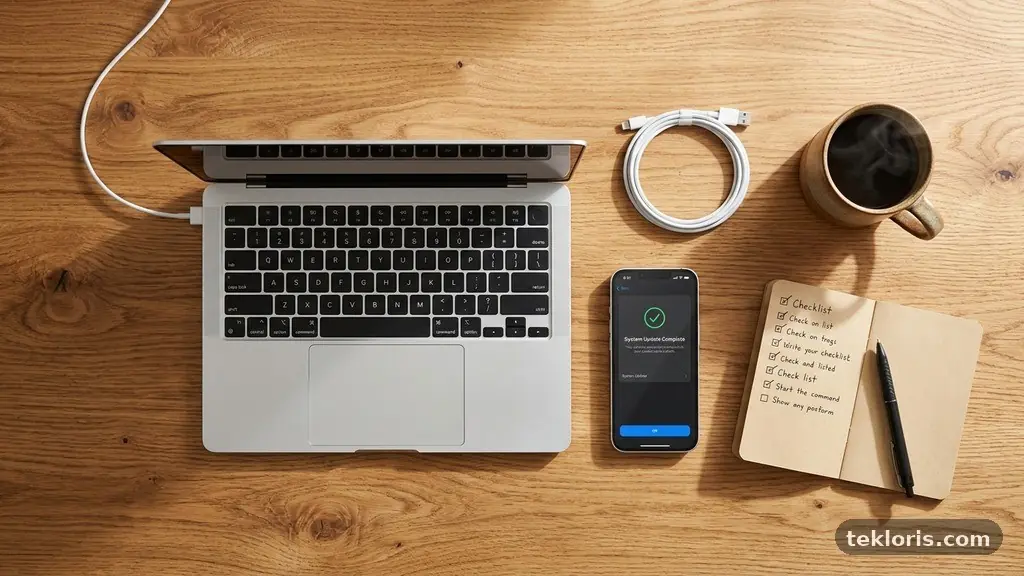
Building a Simple Digital Maintenance Routine for Your Devices doesn’t need to become another demanding project on your calendar. A few small habits can keep phones, laptops, tablets, smart TVs, and home networks safer, faster, and easier to recover when something goes wrong.
The practical answer is to combine quick weekly checks with a deeper monthly review and a quarterly backup test. You’ll learn which tasks matter most, how to fit them into a realistic schedule, and how to avoid common maintenance mistakes that create more problems than they solve.
Start With a Routine You Can Actually Keep
The best maintenance plan is simple enough to repeat. Begin with three layers: a short weekly check, a monthly cleanup, and a quarterly review of backups, security, and hardware condition.
Each layer has a different purpose. Weekly tasks prevent small issues from accumulating, monthly tasks reclaim space and review settings, and quarterly tasks confirm that your recovery plans still work.
| Frequency | Key tasks | Typical time |
|---|---|---|
| Weekly | Install important updates, check storage, review unusual alerts, restart devices | 10–15 minutes |
| Monthly | Run a malware scan, remove unused apps, review app permissions, clear unnecessary downloads | 20–30 minutes |
| Quarterly | Test device backups, inspect chargers, review privacy settings, update recovery information | 45–60 minutes |
Put the routine beside an existing habit, such as paying bills or cleaning your inbox. A repeating calendar reminder is more useful than relying on memory, especially for quarterly tasks that are easy to postpone.
Keep a short device list in a notes app or password manager. Include the device name, operating system, backup location, warranty information if relevant, and the date of the last major check.
Don’t try to repair every minor issue during one session. If an update needs a restart, a backup needs several hours, or a battery appears swollen, record the problem and handle it separately rather than rushing through the rest of the checklist.
Handle Updates Before They Become Urgent
Operating system updates often include security fixes as well as new features. Install them through the device’s built-in settings rather than through links in unexpected emails, pop-ups, or text messages.
Software updates matter too. Web browsers, messaging apps, PDF readers, video-call tools, and password managers can all contain vulnerabilities that developers address through newer versions.
Turn on automatic updates where the device supports them, but don’t assume automation covers everything. Some applications use their own update systems, while older devices may stop receiving operating system support.
A safe update sequence
- Check that the device has enough free storage for the download and installation.
- Connect a laptop or tablet to power, particularly if the update is large.
- Confirm that recent device backups exist before starting a major upgrade.
- Install the update from the official settings menu or the developer’s trusted app store.
- Restart the device if requested and test important functions afterward.
After an update, open the applications you depend on most. Check your browser, email, camera, printer connection, accessibility settings, and any work software that must function reliably.
Major updates can reset permissions or change default applications. If a camera, microphone, location service, or notification suddenly behaves differently, review the relevant setting instead of assuming the hardware has failed.
Keep older devices in mind. If a phone or computer no longer receives security updates, limit sensitive activity on it and consider replacing it when practical, especially if it handles banking, work files, or personal identity documents.
Make Backups Easy to Trust
Device backups are the safety net of digital maintenance. A lost phone is inconvenient, but losing family photos, tax documents, schoolwork, or business files can be far more serious.
Use at least one automatic backup method and understand what it includes. Cloud storage may protect photos and documents, while a full computer backup can preserve applications, settings, and local files.
For important material, keep another copy on an external hard drive or a separate backup system. A single copy is not a backup, and a backup connected permanently to a computer can be damaged by theft, hardware failure, or malware.
Check what your backup really does
Open the backup settings and look at the last successful run. “Backup enabled” is not the same as “backup completed,” and a full storage quota can stop new files from syncing.
Verify that the folders you care about are included. Some services back up only selected folders, while phones may separate contacts, messages, photos, and application data into different categories.
Test restoration at least once every few months. Recover a sample photo, document, or contact to a different location so you know the process before an emergency makes experimentation stressful.
Use encryption and a strong account password for backup services. If a cloud account supports two-factor authentication (2FA), enable it, because access to that account may expose years of personal information.
Backups also need maintenance when you replace a device. Confirm that the new phone or computer has finished syncing before wiping the old one, and keep the old device untouched until the transfer has been checked.
One useful reference is the CISA advice on protecting personal devices and accounts, which explains practical steps for backups, updates, and account security without requiring specialist knowledge.
Strengthen Security and Privacy Settings
Security maintenance works best as a series of small protections rather than one dramatic action. Use a unique password for every important account, enable two-factor authentication (2FA), and keep recovery email addresses and phone numbers current.
A password manager can create and store long, unique passwords without forcing you to memorise dozens of combinations. Protect the manager with a strong master password and, where available, a hardware security key or another second factor.
Run antivirus software on platforms that support it, particularly if you download files, install software from outside official stores, or share a computer with other people. Keep its definitions current and schedule a malware scan when the device is idle.
A scan is useful, but it isn’t a substitute for careful behaviour. Be suspicious of urgent payment requests, unexpected attachments, fake delivery notices, and browser warnings that tell you to call an unfamiliar phone number.
Review permissions rather than accepting defaults
Once a month, inspect app permissions for location, contacts, photos, microphones, cameras, and Bluetooth. A recipe app may need access to storage for saved images, but it probably doesn’t need continuous location access.
Choose the narrowest permission that still lets an app work. “Only while using the app” is often more appropriate than constant location access, and “selected photos” can be safer than granting access to an entire library.
Privacy settings deserve the same attention. Review browser tracking controls, advertising preferences, account visibility, and connected devices, especially after an operating system update or a new app installation.
Remove apps you no longer use. An abandoned application can retain account access, store old data, request updates, or create an unnecessary security risk even if you rarely open it.
Finally, inspect active sessions for major accounts. Sign out of unfamiliar browsers, old phones, shared computers, and devices you sold or gave away.
Clean Storage Without Deleting Something Valuable
Storage cleanup can improve performance, reduce update failures, and make files easier to find. Start with a storage report that shows which categories consume the most space instead of deleting items at random.
Large videos, duplicate downloads, offline playlists, and old installation files usually offer safer opportunities than personal documents. Sort files by size and date, then preview anything you don’t immediately recognise.
Use a simple three-question test
- Do I know exactly what this file or app is?
- Would losing it cause a problem later?
- Can I restore it from a verified backup if I delete it?
If the answer to the second question is yes and the third is no, leave the item alone until you have made a copy. This pause prevents many accidental deletions, particularly with tax records, school projects, and family media.
Cache clearing can help when a browser or app has accumulated damaged temporary data, but it isn’t a routine cure for every slow device. Clearing a cache may sign you out, remove offline content, or force an app to rebuild data.
Use built-in storage tools first. They can identify temporary files, unused applications, duplicate media, and downloads more safely than unfamiliar “cleaner” applications that request broad permissions.
Cloud storage needs organisation as well. Create clear folders, remove duplicate uploads, and check whether deleted files remain in a recovery bin that still counts against your quota.
Keep a small amount of free space available for updates and temporary operations. The exact amount varies by device, but a storage indicator that stays nearly full is a signal to act before the next update fails.
Look After Batteries, Cables, and Physical Hardware
Digital maintenance includes the parts you can touch. Dust, heat, damaged cables, blocked vents, and worn charging ports can create symptoms that look like software problems.
Check battery health on phones, tablets, and laptops where the operating system provides that information. A noticeably reduced capacity, unexpected shutdown, excessive heat, or a battery that appears swollen should be treated seriously.
Never press on or continue using a visibly swollen battery. Disconnect the device if it is safe to do so, keep it away from flammable materials, and use the manufacturer or an approved repair service for next steps.
Inspect charging cables for frayed insulation, exposed wires, bent connectors, or excessive heat. Replacing a damaged cable is usually safer than repeatedly repositioning it until the device starts charging.
Keep the environment friendly to electronics
Don’t cover laptop vents with bedding or soft furniture. Heat can trigger fan noise, throttling, unexpected shutdowns, and faster battery wear.
Clean external surfaces with the method recommended for the device. Use a soft, lint-free cloth and avoid spraying liquid directly into ports, speakers, keyboards, or screens.
Printers, monitors, keyboards, and docks deserve an occasional inspection too. Remove unused accessories from the desk, label important cables, and check that power adapters belong to the device they serve.
Battery health also depends on storage conditions. Avoid leaving a device in a hot car, under direct sunlight, or in a damp room, and don’t store a rarely used device completely uncharged for long periods.
Physical care doesn’t need to be fussy. A five-minute visual inspection can identify a dangerous cable or overheating problem before it interrupts work or damages a more expensive component.
Include Your Wi-Fi Router and Connected Devices
Your home network is part of your maintenance routine, even though it may sit unnoticed for months. Wi-Fi router maintenance starts with checking for firmware updates through the manufacturer’s app or administration page.
Change the router’s default administrator password and use a strong wireless password. If the router supports WPA3, use it when all important devices are compatible; otherwise, choose the strongest supported security mode.
Review the list of connected devices. Remove old phones, guest devices, smart plugs, cameras, and streaming boxes that you no longer own or use.
Restarting a router can temporarily resolve connection problems, but frequent restarts suggest a deeper issue. Check placement, heat, cables, interference, and the internet service before treating a reboot as a permanent fix.
Separate convenience from risk
Put smart-home devices on a guest network when your router supports that option. A connected light bulb or inexpensive camera shouldn’t necessarily share the same network as a work computer and personal files.
Update smart speakers, televisions, cameras, game consoles, and streaming devices. These products often remain connected for years, and owners may overlook them because they aren’t used like traditional computers.
Record the router model and internet provider support details in your household device list. During an outage, having the model number and account information nearby can save time.
Check network performance from the places where you actually work or study. A speed test can show a symptom, but moving the router, reducing interference, or replacing a damaged cable may address the cause more effectively.
When guests visit, offer guest Wi-Fi rather than sharing your primary password. It protects your main network and makes it easy to change guest access later without reconnecting every device in the home.
Turn the Checklist Into a Calm Monthly Habit
A routine becomes sustainable when each session has a clear stopping point. Set a timer for 30 minutes, complete the highest-value tasks first, and write down anything that needs a separate appointment or professional help.
Use a rotation instead of trying to inspect every device every time. Week one can focus on updates and backups, week two on storage, week three on security and permissions, and week four on hardware and the home network.
| Session | Focus | Evidence of completion |
|---|---|---|
| Week 1 | Operating system updates and software updates | Update history checked; important apps open normally |
| Week 2 | Storage cleanup and cache review | Large unwanted files removed; free space improved |
| Week 3 | Device backups and account security | Recent backup visible; 2FA and recovery details confirmed |
| Week 4 | Hardware, router, and permissions | Cables, battery health, connected devices, and permissions reviewed |
Keep notes brief. A line such as “Laptop backup completed; phone storage at 72%; router firmware current” gives you a useful history without turning maintenance into paperwork.
If a task repeatedly takes too long, simplify it. Automatic cloud storage, scheduled antivirus software scans, and built-in update settings can remove several manual steps.
When a device behaves strangely, change one thing at a time. Note the symptom, recent updates, available storage, connected accessories, and error message before making changes, because that information helps support staff diagnose the problem.
Know when to stop troubleshooting. Repeated crashes, data loss, overheating, suspected malware, and failed backups deserve careful attention, and a reputable repair professional may be safer than experimenting with random tools.
Most importantly, reward consistency rather than perfection. A routine completed imperfectly every month protects your information better than an ambitious system that you abandon after one weekend.
Frequently Asked Questions
How often should I maintain my devices?
Do a quick check weekly, a more focused cleanup monthly, and a backup and security review every quarter. If you use a device for work, banking, or sensitive records, check updates and backup status more often.
Do I need both cloud storage and an external hard drive?
Using both gives you more recovery options. Cloud storage is convenient for syncing and access from multiple devices, while an external hard drive can hold a separate local copy that doesn’t depend on an internet connection.
Is clearing the cache always a good idea?
No. Cache clearing can help with corrupted temporary data, but it may sign you out, remove offline files, or slow the app briefly while it rebuilds information. Use it for a specific problem rather than as an automatic monthly ritual.
What should I do if a device is too old for updates?
Move important files to a supported device, limit sensitive activity on the older one, and check whether the manufacturer offers a replacement or trade-in programme. An unsupported device may continue working, but it no longer receives the same security protection.
Can maintenance make a slow device faster?
It can help when the cause is full storage, outdated software, excessive startup apps, malware, or overheating. Maintenance won’t restore modern performance to aging hardware, so replacement may eventually be the sensible choice.
Keep the Routine Small and Useful
Building a Simple Digital Maintenance Routine for Your Devices is mainly about reducing avoidable surprises. Prioritise updates, verified backups, account security, storage awareness, and a quick inspection of batteries and cables.
Choose one day this week for the first 15-minute check, then add a monthly reminder and a quarterly backup test. Once the routine becomes familiar, your devices should feel less demanding—and you’ll have a clearer, calmer response when something does go wrong.