Simple ways to keep cloud-synced files organized across multiple devices start with one clear idea: your cloud storage needs a system, not just more space. A sensible folder structure, consistent file naming conventions, and careful sync settings can make documents easy to find on a laptop, phone, tablet, or work computer.
The phrase “simple Ways to Keep Cloud-Synced Files Organized Across Multiple Devices” describes a practical daily habit rather than a complicated technical project. With a few deliberate choices, you can reduce duplicate files, avoid sync conflicts, protect important work, and keep the newest version available wherever you happen to be.
Start With One Clear Home for Each File
The most effective first step is deciding where each type of file belongs before changing any settings. Choose one primary cloud service, such as Google Drive, Dropbox, or Microsoft OneDrive, for active documents instead of scattering related files across several accounts.
Cloud storage works best when it acts as a shared reference point. If a budget lives in Dropbox, its receipts are in Google Drive, and the latest notes are saved locally on a laptop, cross-device access becomes confusing even if every service is technically synchronizing correctly.
Begin with a short inventory of the material you use regularly. Look through your Downloads folder, desktop, phone storage, email attachments, and existing cloud folders, then identify which items are current, outdated, or unnecessary.
- Keep active work in a clearly named working folder.
- Move completed projects into an archive rather than leaving them among current files.
- Store personal, work, and shared material in separate top-level areas.
- Delete obvious temporary exports, screenshots, and repeated downloads.
- Keep irreplaceable files inside a location covered by your backup strategy.
A useful top-level structure might include “Work,” “Personal,” “Finance,” “Reference,” and “Archive.” These broad categories are easier to remember than a deep maze of folders with dozens of nearly identical labels.
Don’t reorganize everything in one rushed session if the collection is large. Start with the folders you open every week, establish a pattern there, and apply that pattern to older material as time allows.
Build a Folder Structure That Reflects Real Work
A folder structure should follow the way you think about your files, not the way a software company describes its features. Someone managing freelance projects may prefer “Client > Year > Project,” while a household may find “Category > Year > Month” more useful for tax records and receipts.
Keep the first level simple. If every document has to pass through six nested folders before it can be opened, people tend to save files in the root folder or on the desktop instead.
For ongoing projects, a structure such as “Project Name,” followed by “01 Brief,” “02 Working Files,” “03 Reviews,” and “04 Final,” creates a predictable path. Numbered folders remain in the intended order on most devices, including services that sort items alphabetically.
Separate working material from finished material. A folder named “Current” can hold files being edited, while “Archive” stores completed versions that you still need to retain but rarely change.
Use dates with a purpose
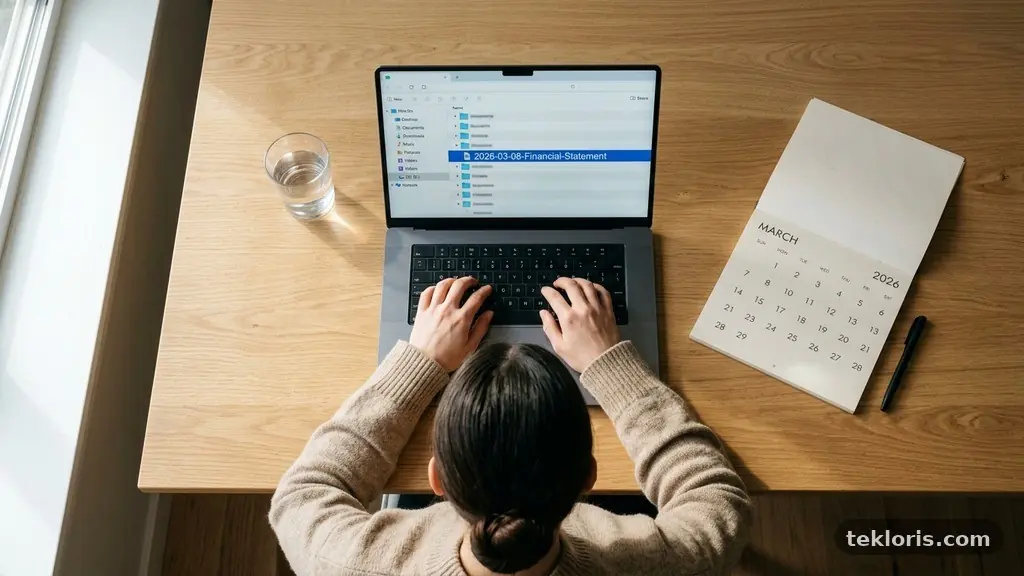
Dates are helpful for records, research, invoices, and recurring reports. Use an unambiguous format such as 2026-03-08 rather than “March 8” or “03-08,” because a year-first format sorts correctly and avoids confusion between day and month conventions.
Not every folder needs a date. A permanent reference document can remain in a stable location, while a monthly financial statement benefits from a year-and-month path.
Limit the number of “final” folders. Names such as “Final,” “Final 2,” and “Final New” reveal that the filing system has stopped communicating which document matters.
Choose File Names That Explain Themselves
Good file naming conventions reduce the need to open several documents just to identify the latest one. A useful name usually includes the subject, relevant date, status, and version only when those details help someone make a decision.
For example, “2026-04-ClientProposal-Reviewed.docx” is more informative than “proposal latest.docx.” The date sorts naturally, the client or project is visible, and “Reviewed” communicates a meaningful status without claiming that the file is permanently final.
Use one separator consistently. Hyphens and underscores are generally safer than decorative punctuation, especially when files move between operating systems or are processed by automation tools.
- Put the most important identifying term near the beginning.
- Use dates in year-month-day order when chronological sorting matters.
- Keep names readable on a phone screen.
- Avoid repeated labels such as “new,” “newest,” or “latest.”
- Use status words only when they have a defined meaning.
Decide how you will label revisions before a project becomes busy. “v01,” “v02,” and “v03” are easy to compare, but a date may be better for records that are updated periodically.
Don’t rely on color alone to identify files. Colors may not appear consistently in every mobile app, and they don’t help much when a document is attached to an email or downloaded outside the original service.
Make shared names understandable
If several people edit the same material, include a project name that outsiders can recognize. “Q4-plan.docx” may be clear to you, but “Northwind-Q4-2026-Operations-Plan.docx” gives a colleague enough context even if the file is viewed away from its original folder.
Keep personal shorthand out of shared files. Acronyms that make sense inside one team can become obstacles six months later when someone else inherits the project.
Control Synchronization Instead of Syncing Everything
File synchronization copies changes between locations, but it doesn’t decide which files deserve space on every device. That distinction matters because a phone, travel laptop, and desktop usually have different storage limits and different purposes.
Use selective sync when a computer doesn’t need every cloud folder stored locally. A desktop workstation may keep an entire photo archive, while a small laptop might synchronize only active projects and essential reference material.
Selective sync can also reduce visual clutter. If an old project disappears from the local file browser but remains safely in cloud storage, you’re less likely to open an outdated document by mistake.
Check how the service represents online-only files. Some apps show a cloud icon, while others use placeholders that download content only when opened.
| Device | Useful local content | Settings to consider |
|---|---|---|
| Primary desktop | Active projects and frequently used archives | Full sync for working folders; local backup where available |
| Travel laptop | Current work and essential reference files | Selective sync plus offline access for travel |
| Phone or tablet | Documents needed for viewing, sharing, or quick edits | On-demand downloads and automatic photo review |
| Shared computer | Only files required for a specific task | Limited sync and careful account sign-out |
Review synchronization settings after installing a new device. Default settings may sync more folders than expected, consume local storage, or expose shared material to a computer used by other people.
Remember that synchronization is not the same as backup. If you delete a file and that deletion synchronizes everywhere, the cloud copy may disappear too, although recovery tools could still help.
Prevent Duplicate Files and Sync Conflicts
Duplicate files often appear when people download a document, edit it outside the synced folder, and later upload the result as a new copy. They can also arise when two devices edit the same file before either device receives the other change.
Choose one working location for each active document. If a spreadsheet is stored in a synced folder, open and save it there rather than maintaining a second desktop copy “just in case.”
Sync conflicts usually happen because a service cannot safely determine which edit should win. This is common with large files, offline work, unstable connections, or applications that keep a document open across multiple devices.
A simple conflict routine
When a conflict appears, don’t immediately delete one version. Open both files, compare the latest meaningful changes, and create one clearly named merged copy in the correct project folder.
- Pause editing the document on every device.
- Check the modification times and the application’s file version history.
- Compare content rather than trusting the newest timestamp alone.
- Save the merged result with a clear name.
- Move superseded copies into a temporary review folder or delete them after confirmation.
Many cloud services provide file version history, which can restore an earlier state without keeping a long chain of manually named copies. Learn where that feature is located before you need it, and check how long older versions remain available under your plan.
Large media files deserve extra care. Video editors, database files, and design projects may not synchronize cleanly while open, so follow the application’s own guidance and close the file before switching devices.
Use Offline Access Deliberately
Offline access is valuable on flights, trains, rural trips, and unreliable networks, but it can create uncertainty if you don’t know which version is stored locally. Mark only the documents you genuinely need without an internet connection.
Before leaving a reliable connection, open each important file and confirm that the service identifies it as available offline. A file that merely appears in a folder may still require a download when you try to open it.
After reconnecting, allow synchronization to finish before editing the same material on another device. Closing a laptop immediately after landing can leave recent offline changes waiting in a queue.
Create a small travel folder for essential material. It might contain a presentation, booking confirmations, emergency contacts, current project notes, and a PDF of instructions, rather than an entire multi-gigabyte archive.
Offline copies also raise privacy considerations. A synced document on a portable device can remain accessible if the device is lost, so use device encryption, a strong passcode, and automatic locking.
Review offline files every few weeks. Old downloaded documents take up storage and may confuse you about which version is current, especially when the same project has changed since your last trip.
Make Metadata, Tags, and Search Work for You
Folders provide visible order, but search becomes essential once a cloud account contains thousands of files. Useful metadata and tags can connect documents that belong to different projects without forcing you to duplicate them into several folders.
Apply tags sparingly and consistently. A tag such as “tax,” “waiting,” or “reference” can be useful, while a long list of personal labels becomes another system to maintain.
Use descriptions, comments, or notes for context that doesn’t belong in the filename. A short note explaining why a contract was replaced can save time later without creating another document.
Search works better when names contain terms people actually use. If a receipt is named “2026-02-14-River-Cafe-Meeting.pdf,” searching for the date, merchant, or meeting may locate it even if you don’t remember the exact folder.
OCR can make scanned documents searchable, but it isn’t perfect. Check important numbers, names, and account details manually after scanning, because poor lighting or unusual fonts can produce incorrect text.
Use a small vocabulary
Define a handful of status labels for shared work, such as “Draft,” “Review,” “Approved,” and “Archive.” When everyone uses the same terms, search filters and visual scanning become much more reliable.
Don’t create separate copies solely to place a file in multiple categories. Use shortcuts, aliases, starred items, or tags when the cloud service supports them, so one source document remains authoritative.
Protect the System With a Real Backup Strategy
Organization keeps files findable; a backup strategy helps keep them recoverable. A synchronized folder can replicate accidental deletions, corruption, or unwanted changes, so important information needs protection beyond ordinary file synchronization.
Use more than one recovery path for irreplaceable material. Depending on the file type and your resources, that may include cloud version history, a separate cloud backup, an external drive, or an offline copy stored away from your main computer.
Keep at least one backup disconnected when practical. A permanently attached drive can be affected by ransomware, accidental formatting, or a synchronization mistake that removes the same material from every connected location.
Test recovery instead of assuming it works. Select a few files, restore them to a separate folder, and confirm that the documents open correctly and retain useful names.
For guidance on protecting accounts and devices, the Cybersecurity and Infrastructure Security Agency’s Secure Our World guidance offers practical advice on strong passwords, multifactor authentication, and software updates.
- Turn on multifactor authentication for every cloud account that supports it.
- Review which devices and applications have account access.
- Remove old devices after selling, replacing, or lending them.
- Check recovery email addresses and phone numbers.
- Schedule periodic backup and restore checks.
Account security is part of file organization because a compromised account can change, expose, or delete a neatly arranged library. A tidy structure is valuable only if the right people can access it.
Set a Short Maintenance Routine
A filing system stays useful when maintenance is small enough to repeat. A five-minute review at the end of a work session can move loose downloads, rename an ambiguous document, and remove an accidental duplicate before clutter spreads.
Once a week, review the folders you used most. Look for files saved outside the intended location, unresolved conflict copies, and documents whose names no longer describe their status.
Once a month, inspect storage usage and synchronization settings. A sudden increase may come from a video folder, repeated phone uploads, or a device that began syncing an archive unexpectedly.
Every few months, review shared access. Remove former collaborators, check public links, and confirm that sensitive folders are not included in a broad shared location.
| Frequency | Task | Reason |
|---|---|---|
| After each work session | File loose documents and remove temporary exports | Prevents desktop and Downloads clutter |
| Weekly | Resolve duplicate files and review active folders | Keeps current work easy to identify |
| Monthly | Check storage, sync status, and offline copies | Catches unexpected device or storage changes |
| Quarterly | Test recovery and review shared permissions | Confirms that protection and access still work |
Write down the rules if several people use the same workspace. A one-page note can explain where new files belong, how dates are written, what “Approved” means, and who is responsible for archiving completed projects.
Keep improving only when a real problem appears. Changing folder names every few weeks creates more disruption than it solves, while a small adjustment based on repeated confusion can make the whole system easier to use.
Frequently Asked Questions
Should I use Google Drive, Dropbox, or Microsoft OneDrive?
Choose the service that fits the devices, applications, and people already in your workflow. Google Drive often suits teams working heavily in Google Docs and Sheets, OneDrive integrates closely with Microsoft 365 and Windows, and Dropbox is widely used for straightforward folder synchronization and sharing. The most important choice is committing to a clear primary location rather than spreading active files across all three.
Is cloud synchronization a backup?
No. Synchronization keeps versions aligned across locations, so an accidental deletion or unwanted change may spread to connected devices. Use version history where available, but also maintain an independent backup for important files and test that you can restore it.
How can I stop duplicate files from appearing?
Work from one synchronized location and avoid editing downloaded copies unless you intentionally replace the original. Close files before switching devices, let synchronization finish, and use file version history instead of creating names such as “final-final-2.”
What should I do when a sync conflict occurs?
Pause editing, open each conflicting version, and compare the actual changes. Preserve the useful content in one clearly named merged file, then remove or archive the conflicting copies only after you have confirmed that nothing important was lost.
How much should I keep available offline?
Keep current work, travel documents, emergency information, and files needed in places with unreliable internet access. Avoid downloading an entire archive to every device, and review offline selections regularly so old copies don’t consume storage or create confusion.
Keep the System Simple Enough to Trust
The best simple Ways to Keep Cloud-Synced Files Organized Across Multiple Devices rely on a primary home for active files, predictable names, selective sync, deliberate offline access, and a backup strategy that is separate from synchronization. Start with the folders you use most, then improve the system through small weekly habits.
When every device points to the same organized source, finding a document becomes routine instead of a scavenger hunt. Choose one folder to clean today, rename a few important files, and let that small improvement build momentum.