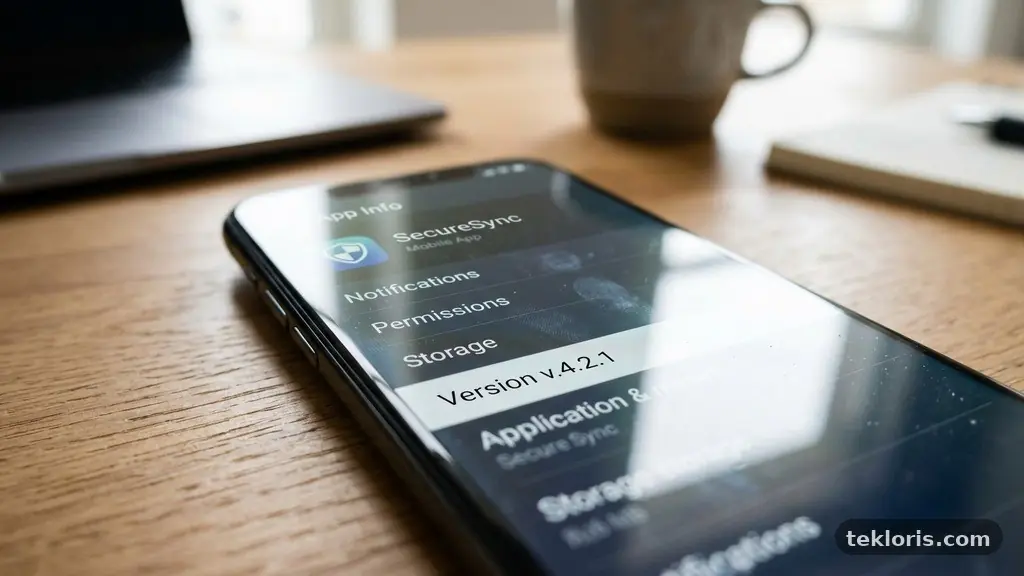
Checking Whether an App Is Still Receiving Security Updates matters because an app can continue working long after its security support has quietly ended. A familiar icon, a recent-looking interface, or a functioning download page doesn’t prove that new vulnerabilities are being fixed. The safest approach is to verify the app version, inspect recent release notes, find the developer’s support policy, and compare its history with known security disclosures.
That process takes only a few minutes once you know where to look. It can also help you decide whether to update, change a setting, replace the app, or remove it before an unpatched flaw exposes your account or device.
Start With the App’s Current Version
The quickest useful check is to identify the exact app version installed on your device. Security support is tied to a version range, not merely to the app’s name, so “I have the latest version” is meaningful only if you know which release that actually is.
On Android, open the Google Play Store, search for the app, and view its store page. The listing usually shows an update button when one is available, while the app’s details or device settings may reveal the installed version. On iPhone or iPad, check the Apple App Store listing and then compare it with the version shown under the app’s settings or the device’s storage information.
Desktop software may display its version under Help, About, Settings, or Preferences. Some applications show a build number as well as a version number, such as 4.8.2 (1846), and that second number can help support teams identify an exact release.
Write down three pieces of information:
- App name and publisher: several products can share similar names, especially in app stores.
- Installed version: include the full number, including minor and patch digits.
- Last updated date: record the date shown by the store, vendor website, or release page.
A store’s last updated date is a useful clue, but it is not definitive proof of a security update. The developer may have released a feature change without fixing security issues, or may have updated the store’s description without publishing a new binary.
Also check whether the application has separate editions. A business version, free version, regional version, browser extension, and mobile version may follow different release schedules. The publisher’s support policy should tell you whether your edition is still covered.
Read Release Notes Instead of Relying on the Date
A recent release date is encouraging, but the wording attached to that release tells you much more. Open the app’s release notes, changelog, or “What’s new” section and search for terms such as security fix, vulnerability, privacy, authentication, encryption, or patched.
Some developers identify a flaw by its CVE number, such as CVE-2024-12345, while others describe it without giving a formal identifier. A CVE, or Common Vulnerabilities and Exposures entry, lets researchers and administrators connect a fix to a documented security issue, although not every vulnerability receives a public CVE.
Release notes can be frustratingly brief. “Minor improvements and bug fixes” doesn’t demonstrate that a security patch was included, but it also doesn’t prove the opposite. Developers sometimes bundle security changes into routine maintenance releases to avoid giving attackers a clear description before users have updated.
Look for a pattern across several releases rather than judging one sentence in isolation. If the publisher has issued multiple versions over the past year and occasionally mentions security fixes, that is stronger evidence of active maintenance than a single update after a long period of silence.
Independent release histories can help fill gaps. An open-source project may publish tagged releases and commit details on GitHub Releases, while a commercial vendor may keep an archive on its own website. Use the official publisher’s page where possible because third-party download sites can display incorrect dates or altered files.
Pay attention to version jumps. A move from 8.3.1 to 8.3.2 often indicates maintenance work, but a major change from 8.x to 9.x may also drop support for older operating systems or devices. Read the compatibility notes before assuming that installing the newest release is safe for every user.
Find the Developer’s Support Policy
The most direct answer often appears in a developer support policy rather than in the app store. Search the publisher’s official website for phrases such as “supported versions,” “security maintenance,” “lifecycle,” “product support,” or “end-of-life.” A clear policy may state that the current release and one previous major version receive security fixes for a defined period.
Policies vary widely. Some vendors promise security updates for a fixed number of years, while others support only the latest version. An app may be actively maintained but still refuse to patch old operating systems because those systems lack required security features.
Find out whether the policy covers your particular platform. A developer might support the Windows edition for five years but discontinue its macOS version, or maintain the Android app while ending support for an older smart-TV edition. The product name alone isn’t enough.
What a strong policy includes
A credible support document normally identifies supported versions, the date of the last release, the process for reporting vulnerabilities, and the conditions that trigger end-of-life. It may also explain how quickly critical issues are addressed and whether fixes arrive through the normal app channel.
Useful wording is specific. “Security updates are provided for the current major release and the preceding major release” gives you something to test. “We regularly improve the product” sounds positive but doesn’t establish a commitment.
Check the policy’s revision date as well. A document last changed years ago may no longer reflect the vendor’s current practice, especially after a company acquisition or a change in ownership.
If no support policy exists, record that as uncertainty rather than assuming the app is abandoned. Small developers sometimes communicate through an official issue tracker or support forum, but the evidence should still identify recent maintenance and a reliable way to receive fixes.
Compare the App With Security Advisories
Security advisories provide a second perspective because they show what the vendor says about reported flaws and how those flaws were resolved. Search the publisher’s advisory archive for the app name, affected version, fixed version, and publication date.
For widely used products, consult the National Vulnerability Database (NVD) to investigate public CVE records. The NVD can show affected version ranges, severity information, references, and sometimes the first public disclosure date.
Do not treat an NVD result as a simple “safe” or “unsafe” label. A CVE may affect only a particular operating system, optional component, configuration, or version range. Conversely, a clean search does not guarantee safety because a flaw may be private, newly discovered, recorded under a different product name, or never assigned a CVE.
Vendor security advisories are often more precise than general search results. They may explain that version 12.4.1 fixes a remote-code-execution issue affecting versions 12.0 through 12.4, while versions on an older branch remain unsupported.
Compare dates carefully. If an advisory disclosed a serious vulnerability months ago and the developer still lists your installed version as affected, update immediately or stop using the app. If the vendor issued a fix but your store offers no newer version, the distribution channel may be delayed or your device may be outside the supported range.
Security databases also contain false leads. Product names can overlap, package identifiers can change, and a vulnerability assigned to a library used by an app may not affect the app’s compiled version. Confirm the publisher, platform, affected component, and fixed release before drawing a conclusion.
Use the App Store as Evidence, Not Proof
The Google Play Store and Apple App Store are valuable starting points because they show publisher identity, version history, update availability, and sometimes a last updated date. They also deliver automatic updates when the device and account settings permit them.
Automatic updates reduce the chance of forgetting a patch, but they don’t guarantee that the developer is still producing one. An abandoned app can remain installed with automatic updates enabled forever, receiving nothing because no new package exists.
Open the store listing manually even if automatic updates are active. Check the publisher’s name, download history, “What’s new” text, privacy information, and the date of the latest release. A listing with a fresh update but years-old screenshots is not automatically suspicious, but a listing that has not changed for several years deserves closer examination.
Store dates can also be misleading in practical ways. A developer might upload a rebuilt package to meet a platform requirement without addressing application-level vulnerabilities, or the store may show when metadata was refreshed rather than the date of a meaningful feature or security release.
Look at user reviews only for clues, not as technical evidence. Reports such as “the app crashes on Android 14” or “the login stopped working” may reveal compatibility problems, but reviewers usually cannot confirm whether a security patch was applied.
For an app installed outside an official store, verify its source and signing information. Sideloaded packages, unofficial mirrors, and modified versions make version checking harder and can introduce risks that have nothing to do with the original developer’s update schedule.
| Evidence | What it can show | What it cannot prove alone |
|---|---|---|
| Store last updated date | That a package or listing changed recently | That the change included a security fix |
| Release notes | Whether the publisher described a patch or vulnerability fix | That every known flaw has been resolved |
| Support policy | Which versions the developer promises to maintain | That the developer has met every stated deadline |
| CVE or advisory record | Which versions are affected and where a fix is documented | That no undisclosed vulnerability exists |
Check for End-of-Life Signals
End-of-life, often shortened to EOL, means the developer has stopped supporting a product or version. An EOL app may still open, retain your data, and appear in an app store, but it should be treated as unsupported if no security fixes are promised.
Typical signals include a support page stating that updates have ended, a banner asking users to migrate, a final release note that names a retirement date, or an app that disappears from the publisher’s current product catalogue. A broken help link is weaker evidence, but several signals together deserve attention.
Abandonment can happen without a formal announcement. If the last app version is several years old, the operating system has moved through multiple major releases, and the developer no longer responds to security reports, practical support has probably ended even if the store listing remains active.
Company changes complicate the picture. An app may be acquired, renamed, merged into another product, or moved to a new publisher account. Search for the package identifier and the former company name, then inspect the current owner’s documentation for migration instructions.
Don’t confuse a stable product with an abandoned product. A calculator or offline reader may need few changes, but if it handles passwords, payments, health data, work files, or network connections, security maintenance remains important even when the feature set rarely changes.
If an app is EOL, choose a replacement before removing it if you need to export data. Save documents in standard formats, revoke the app’s account permissions, cancel subscriptions, and delete stored credentials after confirming that your information has transferred successfully.
Investigate Open-Source and Desktop Apps
Open-source applications require a slightly different check because the official download page may not contain a polished support statement. Start with the project’s release page, issue tracker, security policy, and source repository activity.
GitHub Releases can show tagged versions, publication dates, attached installers, and release notes. Recent code commits alone are not enough: a project may be active in documentation while its packaged application remains unpatched, or contributors may work on an experimental branch that users cannot yet install.
Search the issue tracker for security reports, but respect responsible disclosure practices. A closed issue may indicate a fix, a duplicate, or a private report that never became public. Look for a linked release, commit, or advisory rather than treating the issue’s closed status as proof.
Desktop tools may rely on bundled libraries such as OpenSSL, Chromium, SQLite, or image-processing components. A release note that updates one of these dependencies can be a meaningful security improvement even if the app’s visible features remain unchanged.
Package managers add another layer. Linux distributions may backport a security fix without changing the upstream app’s apparent version, while a vendor installer may use a newer bundled library under the same application version. Check the distributor’s security notice and package changelog when versions seem inconsistent.
Verify downloads carefully. Use the project’s official repository or website, check digital signatures or published hashes when available, and avoid “free download” portals that repackage installers. Security support is irrelevant if the copy installed on the device did not come from a trustworthy source.
Judge the Risk While You Verify
Not every unsupported app creates the same immediate danger. Risk depends on what the app can access, whether it connects to remote services, how attractive its users are to attackers, and whether a known exploitable flaw affects the installed version.
An old offline game with no account and no file permissions is a different case from an outdated password manager, banking app, email client, or workplace collaboration tool. The latter categories can expose credentials, private messages, payment information, or sensitive documents.
Review the app’s permissions and account connections while checking its update status. Remove access that the app no longer needs, sign out of unused accounts, and disable background activity if the app must remain temporarily installed for data recovery.
Use these practical risk questions:
- Does the app process valuable information? Passwords, financial data, medical records, identity documents, and business files require a higher standard.
- Does it accept network traffic? Internet-facing apps can be attacked remotely, especially when they process messages, files, media, or web content.
- Is a known CVE exploitable in your version? A documented affected range raises urgency, particularly for a high-severity vulnerability.
- Can you replace it? A supported alternative reduces the need to tolerate uncertainty.
- Is the device itself supported? An app cannot fully compensate for an operating system that no longer receives security updates.
If a critical app appears unsupported, don’t wait for perfect certainty. Update the operating system, install the latest available app version, contact the vendor, and move sensitive activity to a supported alternative while you investigate.
Security decisions should be proportionate, not panic-driven. A missing changelog is a reason to verify more carefully, whereas a confirmed EOL notice combined with an exposed account is a strong reason to migrate.
Create a Repeatable Checking Routine
Checking once is useful; creating a routine is better. Choose a review interval based on the app’s importance, such as monthly for a password manager or quarterly for a low-risk utility.
Keep a small record with the app name, publisher, installed version, last updated date, support-policy URL, and your review date. The record can live in a spreadsheet or notes app, but don’t store sensitive credentials alongside it.
At each review, perform the same sequence:
- Confirm the installed app version and operating system version.
- Check the official store or publisher page for a newer release.
- Read the latest release notes and changelog.
- Review the developer support policy for supported versions and EOL dates.
- Search vendor security advisories and relevant CVE records.
- Verify that automatic updates are enabled, then confirm they have actually run.
- Record the result and set a reminder if the evidence is unclear.
Set alerts only through trustworthy channels. A developer’s security mailing list, official advisory feed, or account dashboard is more useful than a random notification service that may exaggerate threats or send outdated information.
Review the routine after major device changes. A new operating system, a phone replacement, a company acquisition, or a change from personal to workplace use can alter the app’s risk and support status.
Keep an exit plan for important applications. Know how to export data, identify a replacement, revoke permissions, and remove the old software without losing access to your accounts.
FAQ
Does a recent last updated date mean the app is secure?
No. A recent date shows that something changed, but it doesn’t identify the nature of that change. Read the release notes, check the supported version range, and look for a security advisory or explicit security update before treating the date as evidence of protection.
Can an app receive security updates without changing its version number?
Sometimes. A vendor may update a server-side component, distribution package, or bundled library without making the change obvious in the visible version label. For device-installed software, however, a documented package update is usually the clearest evidence, so contact the publisher if the version history is ambiguous.
What should I do if the developer has no support policy?
Use several evidence sources: official release history, recent security fixes, advisory responses, repository activity, and the app’s current store status. If the app handles sensitive data and the evidence remains unclear, choose a maintained alternative rather than relying on an informal assumption that it is safe.
Are apps removed from an app store automatically unsafe?
Removal is a warning sign, not an automatic verdict. The developer may have replaced the app, restricted it to another region, or ended distribution for business reasons. Check the publisher’s announcement, avoid installing old copies from unofficial websites, and migrate if current security support cannot be confirmed.
How often should I check security support?
Review high-risk apps monthly or whenever a major vulnerability is announced. For low-risk utilities, a quarterly check may be sufficient, provided automatic updates are enabled and the operating system remains supported.
Take the Next Safe Step
Checking Whether an App Is Still Receiving Security Updates comes down to evidence: identify the installed version, inspect release notes, confirm the developer support policy, and compare known advisories with the version you actually use. Store listings and automatic updates help, but neither replaces a clear support commitment.
If the evidence is mixed, reduce permissions and avoid sensitive tasks until you can verify the app or move to a supported alternative. A short review today can prevent an old, forgotten application from becoming the weakest link in your device security.