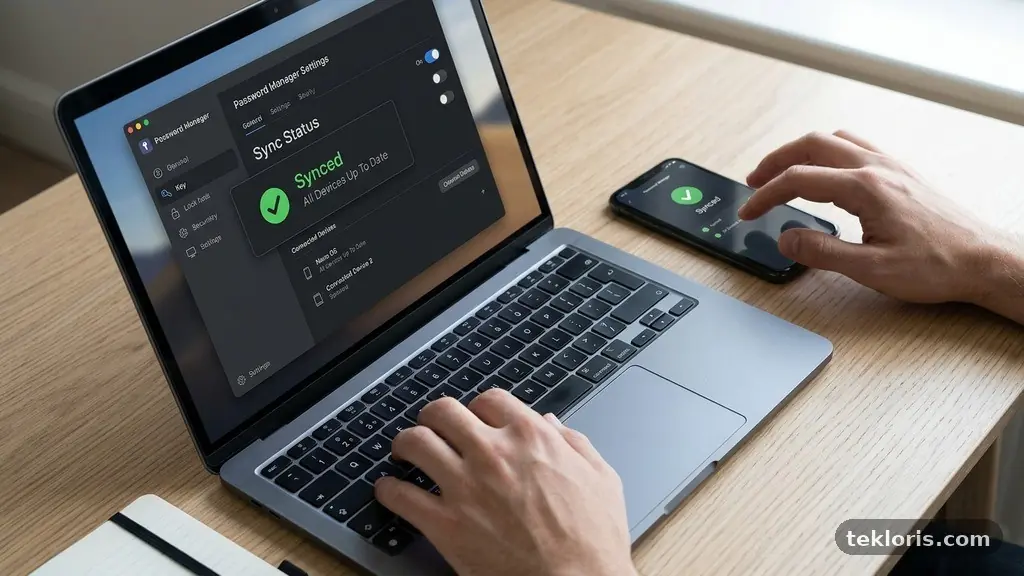
Fixing common problems with password managers across devices usually starts with one simple question: which device or account is out of step? Sync failures, missing passwords, broken autofill, and forgotten master passwords often have different causes, even when they appear together.
A careful check of the account, app versions, network connection, and vault settings can usually restore normal access without deleting valuable data. The right troubleshooting order matters, especially if you rely on a password manager for work, banking, email, and two-factor authentication codes.
Start With the Account and Sync Status
The fastest answer is usually to confirm that every device is signed in to the same password manager account and connected to the same vault. A laptop may use one email address while a phone uses another, particularly if one login was created through Apple, Google, or a work identity provider. If the accounts differ, cross-device sync cannot work because the apps are looking at separate encrypted vaults.
Open the password manager on the device where the correct records appear, then check the account email, subscription status, and vault name. Compare those details with the settings on the device showing missing or outdated entries. Do not uninstall the working app or delete its vault before confirming that the data exists somewhere else.
Next, check the sync indicator inside the app. Most password managers show a recent sync time, a pending upload, or a warning about an interrupted connection. A timestamp that is several hours or days old suggests a sync problem, while a current timestamp paired with missing data points more strongly toward the wrong account, a filtered view, or a duplicate vault.
Refresh the connection in a safe order. Connect to a reliable Wi-Fi network, open the password manager, unlock the vault, and wait for synchronization to finish before switching apps. If the service offers a manual “sync now” command, use it once rather than repeatedly tapping the button, which can create confusing sync conflicts or leave multiple operations queued.
- Confirm the exact account email or sign-in method on every device.
- Check whether the same vault is selected in each app.
- Review the last successful sync time.
- Use stable internet access and temporarily disable restrictive VPN or firewall settings.
- Keep the device with the newest correct data available until the issue is resolved.
If one device contains newer records, avoid making large edits on another device until synchronization is stable. This prevents two versions of a login from competing with each other and gives the service a clean source of truth to replicate.
Repair Cross-Device Sync and Conflicts
Cross-device sync depends on more than an internet connection. The password manager must be allowed to run in the background, reach its service through the network, and write changes to local storage. Phones are especially likely to pause synchronization because battery-saving modes restrict background activity after the app has been idle.
On a phone, open the operating system’s battery settings and remove the password manager from aggressive background restrictions if the app supports that option. Check mobile-data permissions as well, since some devices allow syncing only over Wi-Fi. On a computer, security software, corporate firewalls, or a browser’s privacy controls may block the connection even though ordinary websites load normally.
Sync conflicts appear when the same item changes on separate devices before either version reaches the server. For example, a saved banking password might be renamed on a desktop while its username is edited on a phone. The service may keep both versions, choose one, or present a conflict notice that requires manual review.
When a conflict appears, compare the full record rather than choosing the newest-looking title. Check the username, website address, password, notes, passkey information, and any one-time-code settings. Copy the correct details into one final entry, then archive or delete the duplicate only after confirming that the merged record works.
Some sync issues are caused by outdated software rather than account settings. Update the password manager, browser extension, mobile app, and desktop app from their official distribution channels. Restart the device after updating if the app still shows an old sync state, because background services may not reload until the operating system starts again.
Never resolve a conflict by clearing all local data unless you have a verified password database backup. A local reset can remove the only current copy of a recently added login, especially if the server has not completed its last upload. Treat deletion as a final repair step, not as a routine refresh.
Fix Missing Autofill and Browser Extension Problems
Autofill failures often feel like a password manager outage, but the cause may be limited to one browser or website. Start by testing a familiar login page, such as an email account, rather than a banking or government site with unusual security controls. If autofill works elsewhere, the manager and vault are probably healthy.
On a computer, confirm that the browser extension is installed, enabled, and signed in to the expected account. Browser updates can disable extensions that have lost permission to read page content, while private browsing windows may block extensions unless the user explicitly allows them. Open the extension’s settings and confirm that it can operate on the current website.
On a phone, select the password manager as the system’s autofill provider. Android and iOS each have their own settings for password autofill, and a recent operating system update can switch the default back to the browser or built-in credential service. The manager may also need permission to display over other apps or use an accessibility-related feature, depending on its design.
Security-conscious websites sometimes deliberately resist automatic entry. Login pages built inside embedded frames, apps with custom fields, and sites that change their form structure can confuse an autofill tool. In those cases, open the password manager directly, search for the saved item, and copy the username or password only when you have verified that the destination is legitimate.
Check the saved website address if the correct login never appears. A record saved for https://example.com may not match a service using a separate sign-in domain, regional address, or company identity provider. Add the legitimate login URL to the existing record rather than creating several nearly identical entries, which makes future matching less predictable.
Be cautious with browser extensions that offer to import, export, or reveal passwords. Use only the official extension supplied by the password manager, review its permissions, and remove duplicate or suspicious add-ons. A working autofill feature is not worth weakening the protection around an encrypted vault.
Recover Access Without Losing the Vault
A master password is usually the key that unlocks the encrypted vault, and most reputable services cannot simply email a replacement for it. That design protects the stored credentials from the provider itself, but it also means recovery options must be prepared before a crisis. A forgotten master password can become a permanent access problem if no recovery method exists.
First, stop guessing if you have tried several likely combinations. Repeated failed attempts may trigger a temporary lockout, and hurried guesses increase the chance of changing or deleting the wrong account. Think about whether the manager uses a separate account password, a master password, or a device-specific unlock method such as a PIN.
Check whether account recovery was enabled in advance. Depending on the provider, recovery may involve a trusted contact, an administrator-controlled business account, a recovery key, an emergency kit, or an already authenticated device. Biometric authentication can reopen a locked app on a trusted phone, but it generally does not replace the master password after a full logout, reinstall, or security reset.
If one device still unlocks the vault, keep it offline from unnecessary changes while you review recovery settings. Exporting a password database backup may be possible, but the exported file can be extremely sensitive and should be encrypted, stored briefly, and deleted securely after a verified restoration. Do not email an unencrypted export to yourself or leave it in a shared cloud folder.
Business users should contact the organisation’s administrator before attempting a personal reset. A company-managed password manager may have recovery policies that differ from an individual account, and an administrator could help restore access without exposing every credential. The administrator should also document the event if the lost master password might have been written down or entered into an untrusted form.
After recovering access, create a practical recovery plan. Store the master password in a secure physical location or an approved emergency system, enable the available recovery feature, and verify that a trusted person understands the procedure without receiving unnecessary credential details.
Handle Two-Factor Authentication and Biometric Unlocks
Two-factor authentication protects the password manager account, but it can also create a separate access hurdle when a phone is lost, replaced, or reset. Identify whether the second factor is an authenticator app, hardware security key, text message, email code, or a passkey. Each method has a different recovery path, and the correct one may not be available on every device.
If the authenticator app works on one device, check whether the password manager account provides backup codes or an option to add a replacement factor. Store backup codes somewhere separate from the lost phone, such as an encrypted document or printed emergency record kept in a secure place. Never store the only copy of recovery codes inside the locked vault.
Biometric authentication is convenient because a fingerprint or face scan can unlock a local app quickly. It is not a universal sync mechanism, though. Biometric data normally remains protected by the device’s operating system, so enabling fingerprint unlock on a phone does not automatically enable it in the desktop app.
When biometric unlock suddenly stops working, recheck the device lock settings first. A phone may require the full passcode after a restart, several failed scans, a long period without unlocking, or a security policy change. Enter the device passcode once, open the password manager, and confirm that biometric unlock is still enabled.
Adding a new phone should be treated as a security event, not merely a setup task. Install the official app, sign in through the normal account page, verify the device name in the manager’s security dashboard, and remove the old device if it has been lost or sold. If the old phone might be in someone else’s possession, revoke its sessions and change exposed credentials promptly.
Two-factor authentication also deserves a test before travel or a device replacement. Sign out only after confirming that the new device receives codes, the recovery method works, and the password manager can be unlocked without relying on a phone that is about to be wiped.
Keep Desktop, Browser, and Mobile Apps Aligned
Different platforms do not always receive features at the same time. A desktop app may support a vault category or passkey type that an older mobile app cannot display, while a browser extension may use a separate interface from the main application. The result can look like missing data even when the record is safely stored.
Begin by checking the version number on every installation. Update the desktop app, mobile app, browser, and browser extension, then reopen the vault. If the manager offers a compatibility note or minimum supported operating system, read it before changing settings or importing data.
Do not install a second copy from an unofficial source to bypass an update problem. Malware often imitates password tools because users grant them access to valuable credentials. Use the developer’s official website, Apple App Store, Google Play, or the approved software repository for your organisation.
A browser extension can also remain signed in while the main desktop app is not, or the reverse. Sign out of the affected component only if you know the master password and have a working second-factor method. Otherwise, preserve the current session and troubleshoot permissions, connectivity, and version compatibility first.
Desktop operating systems may block an app from accessing secure storage after a permissions change. On macOS or Windows, review the app’s security prompts and check whether antivirus software has quarantined a helper process. Do not disable protection permanently; instead, verify the application’s publisher and create an exception only when the software is authentic.
On mobile, a full reinstall can fix corrupted local files, but it should happen only after confirming that the vault is synced or backed up. Record any local-only changes first, including newly added logins and notes. Once the app is restored, wait for the entire vault to download before testing autofill or changing passwords.
Protect and Restore a Password Database Backup
A password database backup is useful when a device fails, a vault becomes corrupted, or a service migration goes wrong. It is also a high-risk file because it may contain every login in one place. A backup should therefore be encrypted, labelled with its creation date, and stored where unauthorised people cannot reach it.
Before creating an export, read the password manager’s instructions about file formats and encryption. Some managers produce a protected native backup, while others offer a plain-text CSV export for compatibility. A CSV file may contain usernames and passwords in readable form, so it should never be left in Downloads, attached to an email, or uploaded to an ordinary shared drive.
Use a backup routine that matches how often your vault changes. Someone who adds work accounts every week may need more frequent copies than a person who rarely edits credentials. Keep at least one backup separate from the primary device, but do not create so many copies that you lose track of where sensitive files exist.
Restoration should take place in a controlled setting. Install the verified password manager, import the backup into the correct account or local vault, and compare several important records before assuming the process worked. Test a login for email, a financial service, and a work account, while checking whether notes, custom fields, passkeys, and one-time-code settings transferred correctly.
After a successful restore, delete temporary exports using the operating system’s secure deletion options where available. Empty the recycle bin or trash, remove browser download copies, and clear any cloud-sharing links. If an unencrypted backup was exposed, change the most sensitive passwords and revoke active sessions rather than assuming the file was never opened.
Backups do not replace sync. A backup is a deliberate snapshot, while sync keeps approved changes available across devices. Using both gives you a safer fallback when fixing common problems with password managers across devices, particularly after a lost phone, failed update, or accidental vault reset.
Strengthen Security After the Repair
Restoring access is only half the job. Once the manager works again, review its security activity for unfamiliar devices, browser sessions, exported files, or recent account changes. A technical problem and a compromise can look similar at first, especially if passwords disappear or an unfamiliar login replaces a saved one.
Change the master password if it may have been entered into a fake sign-in page, shared with another person, or stored in an unprotected note. Make it long and unique rather than merely adding a symbol to an old password. The manager’s own password should never be reused for email, shopping, work, or banking.
Use the service’s security dashboard to revoke sessions on lost or retired devices. Review connected browsers and third-party integrations as well. A device removed from your desk may still have an active session unless you explicitly sign it out or revoke it from the account.
Run the password manager’s security assessment after sync and autofill are stable. Prioritise reused, weak, and exposed passwords, but change them gradually if changing hundreds at once would create confusion. Start with email, financial accounts, cloud storage, work systems, and any account that can reset other passwords.
Follow current advice from NIST’s guidance on multi-factor authentication when choosing an additional sign-in factor. A hardware security key or passkey can be especially valuable for an email account that controls password resets, while authenticator apps remain a practical option for many services.
Finally, review the manager’s privacy and security settings once a year. Confirm that end-to-end encryption is enabled where offered, recovery contacts are current, and inactive devices have been removed. Small maintenance checks prevent a future sync failure from becoming an account-security incident.
Common Questions About Device Issues
Why are passwords visible on my phone but not my computer?
The computer may be signed in to a different account, using a different vault, or waiting for a blocked sync operation. Compare the account email, vault name, and last sync time on both devices before editing anything. Updating the desktop app and signing out of a duplicate browser extension can also resolve the mismatch.
Should I delete and reinstall the password manager?
Reinstallation can repair damaged local files, but it should not be the first step. Confirm that the current vault has synced or that you have a verified backup, and make sure you know the master password and two-factor authentication method before removing the app. Otherwise, reinstallation could leave you with no local access and no recovery route.
Why does autofill work in the browser but not inside mobile apps?
Mobile apps use the operating system’s autofill service, which may be set to the browser or another password manager. Select the intended password manager in the phone’s password and autofill settings, then allow it to appear over apps if the operating system requests that permission. Some apps also use unusual login fields that require manual selection from the manager.
Can a password manager recover a forgotten master password?
Usually, not in the ordinary sense, because the master password protects the encrypted vault from unauthorised access. Recovery may still be possible through a recovery key, trusted contact, administrator, emergency kit, or an authenticated device, but only if that option was configured beforehand. Check the provider’s official recovery process rather than using an unofficial “unlock” tool.
How often should I make a password database backup?
The right schedule depends on how frequently your vault changes, but create a new protected backup after major changes such as adding work credentials, importing records, or replacing a device. Keep the file encrypted and remove older unneeded copies. Always test that a backup can actually restore representative records before relying on it.
Keep Every Device in Step
Fixing common problems with password managers across devices becomes much less stressful when you protect the newest working vault first, verify the account and sync state, and change one setting at a time. Most failures come from mismatched accounts, restricted background activity, outdated apps, browser permissions, or recovery methods that were never prepared.
After access returns, update the software, confirm two-factor authentication, remove old sessions, and create a secure backup. A few minutes of maintenance now can spare you from lost credentials later, and it gives every phone, browser, and computer a safer path back to the same encrypted vault.