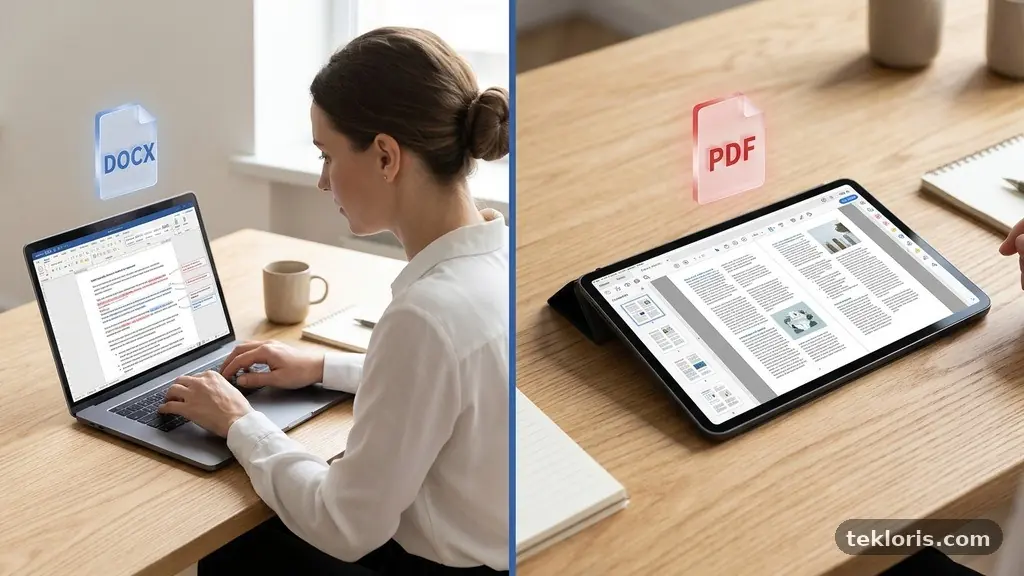
A Practical Guide to Checking File Compatibility Before Sharing Documents starts with one simple habit: test the actual file in the environment your recipient will use. A document that looks perfect on your computer may shift when opened in another version of Microsoft Word, a different operating system, or a browser-based viewer.
Checking the format, layout, links, fonts, edits, and security settings before sending can prevent awkward corrections and lost information. The steps below turn that check into a repeatable routine, whether you’re sharing a short proposal, a contract, a report, or a large project file.
Start with the recipient’s likely setup
The fastest answer is practical: save the document in a format your recipient can open, then test that exact file in a separate viewer or application before sharing it. Don’t rely only on the version displayed on your own screen, because the same file can behave differently across Microsoft Word editions, mobile apps, web browsers, and operating systems.
First, identify what the other person needs to do. Someone who must edit a proposal may need a DOCX file, while a client who only needs to read or sign it will usually have a better experience with a PDF. A print shop, court, government office, or academic portal may impose its own file format compatibility rules, including limits on file size, page dimensions, fonts, or password protection.
Ask one short question if the information isn’t clear: “Which format and application would you prefer?” That question can save a long email exchange later. It also reveals whether the recipient expects an editable source file, a fixed presentation copy, or both.
Match the format to the task
DOCX is generally appropriate for collaborative editing, especially when the recipient uses a current version of Microsoft Word or a compatible office suite. PDF is usually better for preserving document layout, though a PDF isn’t automatically perfect: unusual fonts, transparent graphics, form fields, or accessibility features can still cause problems.
Legacy DOC files deserve extra caution. They were designed for older Word versions and may lose newer features, formatting, or tracked changes when opened in modern software. If an older recipient specifically requests DOC, open the converted file and inspect it rather than assuming the save operation preserved everything.
| Purpose | Usually suitable format | Main compatibility concern |
|---|---|---|
| Collaborative editing | DOCX | Version compatibility, fonts, tracked changes, and comments |
| Reading or printing | Document layout, embedded fonts, links, and viewer behaviour | |
| Older office software | DOC, if specifically requested | Newer features may be removed or changed |
| Data exchange | CSV or XLSX, depending on the content | Character encoding, formulas, date formats, and hidden sheets |
| Online submission | Portal-specified format | File-size limits, naming rules, security settings, and validation errors |
Check the format and application together
File format compatibility and software application compatibility are related, but they aren’t identical. Two applications may both open a DOCX file while interpreting a page break, chart, table, or field differently. The extension tells you what kind of file it is; the application determines how that file is rendered and edited.
Use the application’s own compatibility tools when available. In Microsoft Word, a compatibility checker may identify features that aren’t supported by an earlier version, such as certain effects, content controls, SmartArt behaviours, or embedded objects. Treat the warning as a prompt to inspect the affected area, not as a minor notification to dismiss automatically.
Look for features that travel poorly
Documents become fragile when they depend on features that only one application understands. Linked spreadsheets, macros, unusual equation editors, embedded videos, third-party fonts, and custom fields can all change when the file crosses software boundaries.
- Embedded objects: confirm that the object is still visible and opens correctly, or replace it with a stable image when editing is unnecessary.
- Macros: tell the recipient that the file contains them and share only when the business need is clear.
- Fonts: check whether the typeface is licensed for embedding or substitute it with a commonly available font.
- Tables and charts: inspect column widths, labels, calculations, and page breaks after conversion.
- Fields and automation: update page numbers, cross-references, dates, and table of contents entries before sending.
Saving a DOCX file as PDF can remove some editing problems, but it doesn’t fix inaccurate content. A spreadsheet chart may export with a clipped label, and a heading may move to the next page even though the word-processing version looked fine. The exported copy is a new deliverable that needs its own review.
For PDFs prepared for professional print or archival use, a preflight check can examine technical details such as colour spaces, missing fonts, image resolution, and page dimensions. Adobe Acrobat Preflight is one example of a specialist tool; Adobe describes its use in the official Acrobat Preflight documentation. Most everyday business documents don’t need that level of inspection, but regulated, printed, or formally submitted files may.
Inspect layout, fonts, and visual details
Visual compatibility is often the first problem a recipient notices. A paragraph may wrap onto a second page, a table may split awkwardly, or a logo may become blurry after conversion. These changes can affect meaning, especially in contracts, invoices, application forms, and reports that depend on precise page placement.
Open the file at 100% zoom and scan every page. Then view it in a different window size or on a second device, because a document can appear stable on a large monitor but become difficult to read in a browser or mobile viewer.
Fonts are a frequent source of movement
If a recipient doesn’t have the font used in the source document, the application may substitute another typeface. That substitution changes character widths, line breaks, heading positions, table dimensions, and sometimes the total page count.
Font embedding can reduce this risk, but it isn’t a universal solution. Some fonts restrict embedding, some applications handle embedded fonts differently, and a PDF may display the typeface correctly while an editable DOCX file still changes on another computer.
For a document that must remain editable, use fonts commonly installed across the intended environment and avoid relying on a decorative font for essential information. For a fixed-layout file, export to PDF and confirm that the fonts are embedded or otherwise represented correctly in the file’s properties.
Inspect the parts people tend to miss
Headers, footers, footnotes, page numbers, text boxes, and floating images deserve a separate pass. These elements can shift without making the main paragraphs look obviously wrong.
- Check the first and last page for orphaned headings or a single line stranded at the top.
- Verify that tables fit within the printable area and don’t hide text behind a margin.
- Confirm that images retain their intended crop, resolution, and alternative text where needed.
- Review page breaks before signatures, headings, appendices, and form fields.
- Compare the final page count with the approved version.
Don’t judge a PDF only by its thumbnail view. Zoom in on small type, mathematical symbols, logos, and screenshots. A page can look orderly in a thumbnail while containing unreadable text or a missing graphic at normal size.
Test links, edits, and interactive content
A compatibility review should cover behaviour, not just appearance. Hyperlinks may lose their clickable status during export, point to the wrong address after an edit, or work on a desktop while failing in a restricted browser. Test internal links, external links, email links, and buttons individually.
Hover over each important link and compare its destination with the visible label. If the file contains a table of contents, jump from several entries to their headings and return using the back function. A broken internal link can make a long report frustrating even when every page looks correct.
Control tracked changes and comments
Tracked changes and comments can reveal private negotiation notes, draft wording, names, or pricing information. Accepting visible changes isn’t the same as removing the underlying revision history, and hiding markup in the display settings doesn’t necessarily delete it.
Before sharing a final document, create a separate copy and use the application’s inspection tools to look for comments, revisions, document properties, hidden text, and custom XML where relevant. Open the cleaned copy again after removing that material. This protects the final version while preserving the working file for your internal records.
If the recipient needs to review edits, don’t flatten them prematurely. Confirm whether they want tracked changes, comments, or a clean comparison copy, then label the file clearly with a version date or status such as “review copy” and “final for signature.”
Check forms and signatures
Interactive PDF forms can behave differently across browser viewers and desktop PDF applications. Test every field, tab order, date box, checkbox, calculation, and signature area in the application the recipient is expected to use.
A scanned signature image is not the same as a verified digital signature. If the document carries legal or compliance significance, follow the signing process specified by the organisation rather than inserting an image and assuming it provides the same protection.
Account for operating systems and viewing devices
Operating system compatibility affects more than fonts. File paths, permissions, default applications, clipboard behaviour, colour management, and available viewers can differ between Windows, macOS, Linux, iOS, and Android. A file that opens on a Windows laptop may be difficult to edit on a phone, particularly if it contains wide tables or complex forms.
Test in the recipient’s likely environment when the document matters. If you can’t reproduce it, use a second application on your own device, such as a browser viewer or an alternative office suite, and compare the result with the original.
Consider access without the original software
Some recipients may not have Microsoft Word installed. A DOCX file might open in a web editor, but fonts, page breaks, comments, and advanced layout features may not match the desktop application.
For a read-only audience, supply a PDF as the primary copy and include the editable file only if there is a clear reason. That approach reduces accidental edits and gives the reader a stable version to print or archive.
Mobile viewing creates its own issues. A responsive viewer may reflow text, shrink tables, or place a signature field below the visible area, so test critical documents on a smaller screen if recipients are likely to use one.
Keep accessibility in the compatibility check
Accessibility is part of usability, not an optional finishing touch. A document may look correct visually while a screen reader encounters headings in the wrong order, images without descriptions, or a table with no meaningful header structure.
Use real heading styles rather than merely enlarging text. Add alternative text to informative images, use descriptive link labels, maintain sufficient colour contrast, and ensure that information isn’t communicated by colour alone.
For PDFs, confirm that the export retains a usable text layer and logical reading order. A scanned page may appear polished but remain inaccessible unless optical character recognition and proper tagging have been applied and checked.
Protect information before sending
Compatibility and security sometimes pull in different directions. Password protection can prevent casual access, but it may also stop a recipient’s portal, preview tool, or accessibility software from opening the file. Decide whether protection is required, and test the protected copy in the exact workflow the recipient will use.
Never send a password in the same message as a sensitive attachment. Use a separate channel, and tell the recipient which file the password applies to if several versions are involved.
Remove hidden information
Office files can retain author names, organisation details, comments, revision history, template information, and embedded content. A document properties panel may expose more than the visible pages do.
- Inspect author, company, title, and custom property fields.
- Remove comments and revision history from the final copy when they aren’t needed.
- Check headers, footers, white text, hidden sheets, and collapsed sections.
- Open attachments or embedded files and confirm they don’t contain confidential material.
- Use a clear filename that identifies the document without exposing sensitive data.
File names matter more than they appear to. “Contract_Final_Final2.docx” creates uncertainty, while “Acme-service-agreement-2025-03-08-review.docx” communicates purpose and status more clearly. Avoid characters that a recipient’s operating system or upload portal may reject, including slashes, quotation marks, and some symbols.
Build a repeatable pre-sharing workflow
A short checklist prevents compatibility checks from becoming an improvised scramble. The goal isn’t to inspect every possible technical detail for every attachment; it’s to apply the right level of care to the document’s purpose and risk.
For routine files, a few minutes may be enough. For a signed agreement, public report, regulated submission, or print-ready brochure, schedule a separate review and have another person inspect the final output.
A practical seven-step check
- Confirm the recipient’s need. Determine whether the file must be edited, printed, signed, uploaded, or simply read.
- Choose the appropriate format. Select DOCX, PDF, or the portal’s required format rather than sending the source file by habit.
- Save a clean working copy. Preserve the original separately so you can recover comments, revisions, and earlier wording.
- Inspect compatibility warnings. Review messages about unsupported features, legacy DOC conversion, fonts, or version compatibility.
- Check the exported file. Compare page count, layout, images, tables, links, headings, and small text with the source.
- Review privacy and security. Remove unwanted metadata and hidden material, then test password protection if it is required.
- Open it as the recipient would. Use the likely application, device, browser, or submission portal and record any limitation in the message.
Use a meaningful version label after the check, not before it. A filename such as “project-brief-2025-03-08-final-pdf.pdf” should mean that the PDF itself was reviewed on that date, not merely that someone intended it to be final.
Keep a small record for high-stakes files. Note the application used, the export format, the reviewer, and any known limitation, such as “editable source supplied separately” or “best viewed in desktop Acrobat.” That record helps colleagues reproduce the result months later.
Handle difficult files with extra care
Some documents need more than a standard open-and-scan review. Large reports with many charts, multilingual documents, engineering drawings, legal forms, and files containing equations can fail in ways that aren’t obvious from a quick glance.
Multilingual documents may use scripts requiring specific fonts or right-to-left layout rules. Check line direction, punctuation placement, hyphenation, and font substitution in every language represented, not just the language used for the headings.
Long documents also expose navigation problems. Update the table of contents, verify cross-references, check bookmarks in the PDF, and test appendix references from the body text. A report with 150 correct pages can still frustrate readers if its navigation points to the wrong sections.
When conversion is unavoidable
If a portal accepts only PDF, export from the source application rather than printing to a virtual PDF tool without checking the result. Export settings can affect hyperlinks, accessibility tags, image quality, bookmarks, and text search.
For older systems, make a deliberate conversion copy. Open it in the target application, compare representative pages with the source, and check fields that commonly fail, such as dates, tables, formulas, and page numbering.
Don’t overwrite the original during conversion. Keeping both files makes it possible to correct a lost feature without reconstructing the document from scratch.
Frequently asked questions
Is PDF always the safest format to share?
No. PDF is usually strong for preserving appearance, but it can still contain missing fonts, broken links, inaccessible scans, incorrect page dimensions, or security restrictions. Review the PDF after export, especially when the recipient must print, sign, search, or submit it through an automated system.
Should I send DOCX or PDF for a document that may need edits?
Send DOCX when the recipient genuinely needs to revise the content and uses a compatible application. If the document is an approved reference copy and edits aren’t expected, send PDF instead; you can provide the DOCX separately when there is a clear business reason.
How can I tell if a file contains hidden comments or revisions?
Use the document inspector or review tools in the application that created the file, then check comments, tracked changes, hidden text, metadata, and document properties. Save a cleaned copy and reopen it to verify that the unwanted information has actually been removed.
What should I do if the recipient uses an older version of Word?
Ask which features they need and run the application’s compatibility checker before saving a copy for them. Inspect tables, charts, fonts, page breaks, and tracked changes after conversion, because an older version may open the file while changing parts of its presentation.
Do I need specialist PDF preflight software for ordinary documents?
Usually not. A careful visual, text, link, font, and accessibility review is sufficient for many everyday files, while specialist preflight tools are more useful for professional printing, archival work, regulated submissions, and documents with strict technical specifications.
Make the final send a deliberate step
A Practical Guide to Checking File Compatibility Before Sharing Documents comes down to matching the format to the recipient’s task, testing the real output, and checking more than the first page. Pay attention to application and operating system differences, fonts, layout, links, revisions, hidden information, and any security setting that could block access.
Before you click Send, open the final attachment once more, confirm its filename and version, and explain any limitation in one clear sentence. That small pause turns file sharing from a hopeful handoff into a dependable part of your workflow.