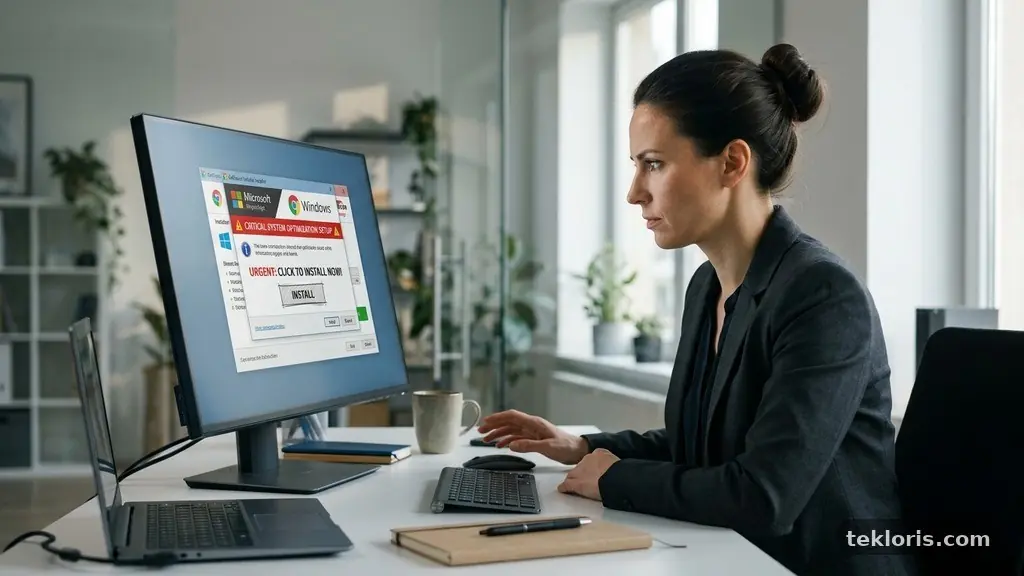
Knowing what to review before installing a free desktop utility can prevent malware, unwanted advertising, privacy surprises, and difficult cleanup later. A tool that promises faster searches, cleaner storage, better screenshots, or easier file conversion still deserves a careful check before it reaches your computer.
The safest approach is practical rather than suspicious: verify the software publisher, use an official download source, inspect permissions and installer options, and confirm that the utility fits your operating system. A few minutes of review can protect your files, browser settings, personal information, and future troubleshooting time.
Start With the Publisher and Download Source
The first answer is simple: before installing a free desktop utility, confirm who made it, where it came from, and whether the download page is genuinely connected to that publisher. A familiar-looking program name is not enough because criminals often copy logos, descriptions, and screenshots from legitimate products.
Visit the publisher’s official website by typing the address yourself or using a trusted bookmark. Avoid relying on the first search result if the wording, domain name, or page design looks unusual, because sponsored results and cloned download pages can lead to modified installers.
Check whether the website identifies a real company, support channel, privacy contact, and release history. A publisher that provides version notes, documentation, and a clear support process gives you more to evaluate than an anonymous page offering a single executable file.
Pay close attention to the domain. A utility associated with one company should normally be hosted on that company’s domain or on a clearly identified official distribution platform, not an unrelated file-sharing site with several download buttons.
Signals that deserve a pause
- The publisher’s name changes between the website, installer, and operating system warning.
- The download page uses urgent language such as “install now” or claims your computer is already infected.
- The file is hosted on a shortened or unfamiliar URL with no explanation.
- The program has no release notes, support information, or identifiable privacy policy.
- The download begins after clicking a large advertisement rather than the clearly labelled product button.
Search the exact product name alongside terms such as “security issue,” “unwanted bundle,” or “uninstall problem.” User reviews can reveal recurring experiences, but treat them as evidence to investigate rather than proof by themselves.
Independent reviews are especially useful when they describe a specific version, installer screen, or permission request. A vague five-star comment says little, while a dated report explaining that an application changed the default search engine gives you a concrete risk to verify.
Check Safety Before Opening the Installer
A downloaded file should be treated as unverified until your computer and your own checks support it. Start with the built-in security tool on your operating system, then run a malware scan before opening the installer, particularly if the file came from a third-party catalogue.
You can also submit the file’s hash or installer to VirusTotal’s file analysis service for a broader set of antivirus opinions. A clean result is encouraging, but it is not an absolute guarantee; new threats may not yet be recognised, and a detection can sometimes be a false positive.
Inspect the file name and extension carefully. A program advertised as a Windows installer might end in .exe or .msi, while a macOS application may arrive in a disk image or package format; a file with a double extension such as “utility.pdf.exe” deserves immediate suspicion.
Digital signatures provide useful evidence
A digital signature helps confirm that the file was signed by a named publisher and has not been altered since signing. On Windows, you can usually open the file’s properties and inspect the Digital Signatures tab, while macOS displays developer and security information during launch.
A valid signature does not mean the program is automatically harmless. It tells you who signed the file and whether its contents changed after signing, so compare that identity with the publisher shown on the official website.
If the signature is missing, invalid, or issued to an unrelated company, stop and investigate before proceeding. Some legitimate open-source utilities may use different distribution methods, but the publisher should explain those methods clearly in its documentation.
Do not disable antivirus protection merely because an installer says it is required. A trustworthy publisher should provide a reason and a safer support route, not pressure you to remove a security control that protects the rest of your system.
Read the Privacy Policy and Permission Requests
A free utility may be funded by advertising, analytics, optional subscriptions, or the collection of usage information. The privacy policy should explain what data the program collects, why it collects it, how long it keeps that information, and whether it shares data with service providers or advertising partners.
Read the sections that describe diagnostic data, device identifiers, browsing activity, cloud processing, and account information. A simple image resizer may reasonably need access to selected files, but a desktop clock should not need broad access to browser history or email content.
Permission requests should match the program’s purpose. A file-renaming utility may need access to folders you choose, whereas a small calculator requesting administrator access, network access, contacts, and microphone access needs a clear explanation before you continue.
Compare the request with the task
| Utility type | Access that may make sense | Requests worth questioning |
|---|---|---|
| File converter | Selected files, destination folder, temporary storage | Contacts, microphone, browser history |
| Screenshot tool | Screen capture, image storage, optional keyboard shortcut | Email account access, unrelated cloud files |
| System monitor | Hardware details, running processes, startup access if explained | Personal documents or extensive browsing data |
| Password manager | Encrypted vault access, clipboard features, browser integration | Unexplained advertising tracking or plain-text password storage |
Privacy wording can be broad, so look for specific choices. A policy that says data may be used to “improve services” without describing the data categories or retention period gives you less confidence than one that separates crash reports from identifiable account details.
Consider whether the program supports local processing. A utility that edits files entirely on your computer may create fewer privacy concerns than one that uploads every document to a remote server for conversion.
Never assume that a free price means you have no meaningful cost. Your data, attention, browser searches, or permission to display advertisements may be the product, and the privacy policy should make that exchange understandable.
Inspect the Installer for Bundled Software
Many desktop utilities are safe in their core function but arrive with bundled software, browser extensions, promotional offers, or adware. The danger often appears during installation rather than in the main program itself, especially when the installer uses a rapid “recommended” path.
Choose a custom, advanced, or manual installation option if one is available. This view may reveal preselected boxes for a search provider, system cleaner, browser add-on, trial application, or changes to your homepage and default search engine.
Read every screen instead of clicking “Next” repeatedly. A checkbox may be written as a permission rather than an offer, so look for phrases such as “allow,” “set as default,” “share usage data,” or “launch at startup.”
What to record during setup
- The destination folder and whether it is inside the expected applications directory.
- Any startup, background service, scheduled task, or automatic update option.
- Whether the utility asks to change browser defaults or install an extension.
- Any third-party product name shown beside the main application.
- The license, subscription, trial period, and cancellation terms.
Decline optional offers even when they appear to be endorsed by the utility. If the installer makes refusal difficult, hides the decline button, or repeatedly reintroduces an offer, cancel the process and obtain the program from another source.
Be wary of “driver updater,” “registry cleaner,” and “PC repair” utilities that use alarming scans to sell a premium version. Some may perform a legitimate task, but exaggerated warnings and aggressive payment prompts are reasons to examine the publisher and product history more closely.
After installation, open your browser settings and startup applications to confirm that nothing changed unexpectedly. A quick check can catch a new extension or default search provider before it becomes part of your daily routine.
Confirm System Requirements and Compatibility
System requirements are more than a list of preferred hardware. They tell you whether the utility supports your operating system version, processor architecture, available memory, storage space, graphics features, and related frameworks.
Check operating system compatibility on the publisher’s product page rather than assuming that a program supporting Windows also supports macOS or Linux. Even within one platform, a utility may require a recent release and fail on an older computer that still receives security updates.
Look for separate downloads for 32-bit and 64-bit systems, ARM and x86 processors, or different macOS versions. Installing the wrong build may cause crashes, missing features, or confusing error messages that have nothing to do with the application’s basic quality.
Compatibility questions to answer
Confirm whether the tool needs administrator rights. A photo viewer that requires elevated access for every launch has a different risk profile from a portable application that runs within your user account.
Check whether the utility relies on a particular runtime, such as .NET, Java, Visual C++ components, or a browser engine. Download those dependencies only from their official sources, and avoid installers that bundle unrelated “helper” programs without explanation.
Older utilities can also conflict with modern security settings. A program that has not been updated for years may use outdated encryption, incompatible drivers, or unsupported startup methods even if its download page remains online.
Read the minimum requirements alongside recent user reviews. Reports mentioning crashes on the same operating system version you use are more relevant than older praise from a different hardware generation.
If you are installing on a work computer, school device, or shared family machine, check local rules first. An application can be harmless yet unsuitable because it requires administrative approval, creates background services, or conflicts with centrally managed security policies.
Protect Your System Before the First Launch
Create a system restore point before installing a utility that changes settings, adds drivers, integrates with the file system, or claims to optimise Windows. A restore point is not a backup of personal documents, but it can help reverse certain system configuration changes if the installation causes trouble.
Back up important files separately. Keep copies of documents, photographs, project folders, and browser data in a location the new utility cannot overwrite, because recovery tools and file managers can cause damage through incorrect settings or user error.
Close unrelated applications before installation. This reduces the chance of locked files, incomplete updates, or conflicts with another program that is trying to modify the same system component.
Use a cautious first run
Launch the program without immediately granting every request. If it asks for access to a folder, choose a test folder first, and if it offers cloud synchronisation, leave that feature disabled until you understand where the data will go.
Watch for unusual behaviour after the first launch. Unexpected browser tabs, new desktop shortcuts, high processor use, unexplained network activity, or repeated security warnings deserve investigation before you use the utility with important files.
Check the operating system’s list of installed applications after setup. Confirm the program’s name, publisher, version, and installation date, then note whether additional applications appeared alongside it.
For a high-risk or experimental tool, consider using a virtual machine or a non-critical test computer. That extra separation is especially sensible for utilities that process unknown files, install drivers, or interact deeply with system settings.
Keep the installer until you have confirmed that the software works and can be removed cleanly, but store it in a clearly labelled folder. Once you trust the installation and have a verified replacement download path, deleting old installers reduces clutter and avoids confusion between versions.
Evaluate Updates, Support, and Removal
A utility’s maintenance history matters because security weaknesses and compatibility problems emerge after release. Look for a visible version number, recent changelog, update mechanism, and explanation of how security issues are reported.
Automatic updates can be convenient, but inspect how they operate. The program should identify its update server, show the new version, and provide a way to review release notes rather than silently installing unrelated products.
Support quality is another practical signal. A publisher that answers installation questions, documents known conflicts, and publishes fixes gives you a better way to respond if the utility breaks after an operating system update.
Test the uninstall process
Before committing to regular use, find out how the uninstall process works. A normal removal entry in the operating system’s application settings is preferable to a program that tells you to download a separate cleaner or delete random folders manually.
Read the removal prompts carefully because some uninstallers offer to keep settings, cached files, or user data. Keeping those files can help if you reinstall later, but deleting them may be better on a shared computer or when you are leaving the software permanently.
After uninstalling, check browser extensions, startup applications, scheduled tasks, and system services. Do not delete unfamiliar files blindly; search the exact publisher and file name first, because removing a shared component can affect other applications.
Cancel subscriptions separately if the utility moved you into a trial or paid plan. Removing the desktop application does not necessarily stop billing, and the cancellation route may be managed through the publisher, an app store, or a payment provider.
Keep a short note of the version you installed and any changes you made. That record can save time if you later need to restore the system, report a problem, or explain why a browser setting changed.
Use a Simple Decision Process
Not every free utility needs a lengthy investigation, but unfamiliar software should pass a consistent set of checks. A repeatable process prevents enthusiasm about a useful feature from pushing safety questions aside.
Begin with purpose. If the program solves a narrow problem that your operating system already handles, the benefit may not justify additional permissions, background activity, or maintenance.
Next, compare alternatives. An open-source project, a built-in operating system feature, or a tool from an established publisher may offer fewer surprises than a heavily advertised download with unclear ownership.
A practical stop-or-proceed checklist
- Proceed carefully when the publisher is identifiable, the official download source is clear, the signature matches, and permissions fit the task.
- Pause and investigate when user reviews describe adware, unwanted changes, crashes, or difficult removal.
- Use a test environment when the utility installs drivers, handles sensitive files, or requests broad system access.
- Decline the installation when the download source is unclear, security tools flag the file, or the installer pressures you to disable protection.
Write down the reason you want the utility and the exact feature you expect to use. That small step makes it easier to recognise unnecessary extras during setup, such as an account requirement for an offline task or a browser extension unrelated to the main function.
Give the program a short trial with non-sensitive files. Test opening, saving, exporting, and closing before trusting it with a large project or irreplaceable collection.
After several days, review whether the tool is still useful. Remove applications that sit unused, run constantly in the background, or create more notifications than value, because unused software still needs updates and can expand your attack surface.
Frequently Asked Questions
Is a free desktop utility automatically unsafe?
No. Many reputable utilities are free because they are open source, supported by donations, funded by a paid companion product, or distributed by an established company. Price alone tells you very little, so assess the publisher, download source, permissions, privacy terms, installer behaviour, and maintenance record.
Should I trust a program with many positive user reviews?
Positive user reviews are useful but not decisive. Check whether the comments refer to the current version, describe actual use, and come from a credible platform; a large number of short comments can be less informative than a smaller set of detailed reports about privacy, updates, and the uninstall process.
What should I do if antivirus software flags the installer?
Do not bypass the warning immediately. Confirm that you downloaded the file from the official source, check its digital signature, scan it with another reputable service, and review the publisher’s explanation; if the alert remains unresolved, choose a different utility.
Is a custom installation option always safer?
It is often safer because it exposes bundled software, browser changes, startup settings, and optional data sharing. It is not a guarantee, though, so read each screen and decline anything unrelated to the utility’s stated purpose.
Do I need a restore point for every installation?
Not necessarily. A restore point is particularly helpful before installing drivers, system cleaners, shell extensions, or software that modifies operating system settings, while a small user-level application may present much less risk; important personal files should still be backed up separately.
Make the Installation a Deliberate Choice
What to review before installing a free desktop utility is not a demand to distrust every download. It is a short safety habit: verify the publisher and official source, scan the file, inspect permissions and bundled offers, confirm compatibility, and understand how removal works.
Take those steps before clicking Install, then test the program with ordinary files and limited access. If a utility cannot explain what it does, why it needs certain permissions, or how it can be removed, choosing another tool is a sensible and positive decision.