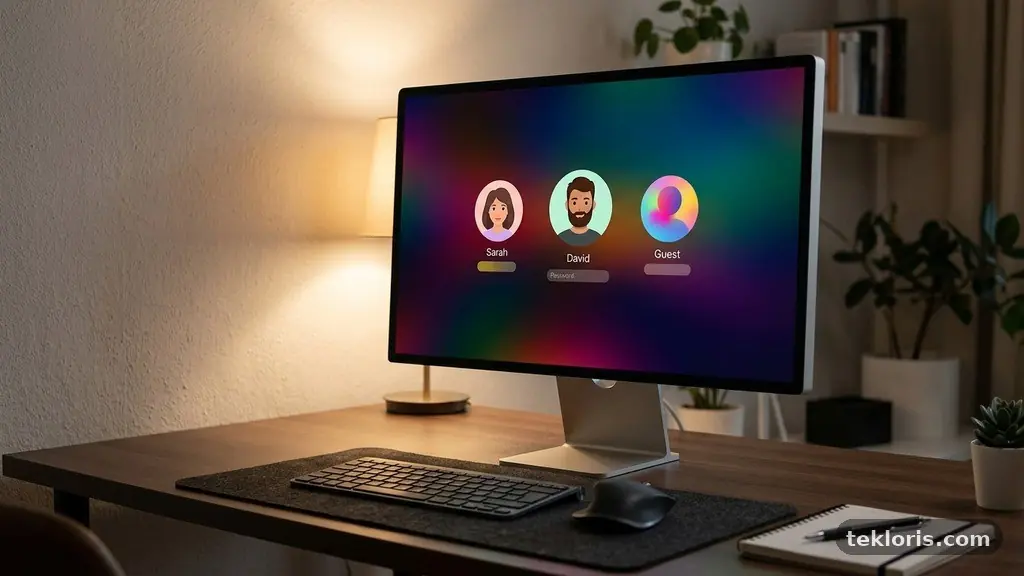
Protecting Important Files When Sharing a Computer With Others starts with keeping each person’s work in a separate, private space. A shared laptop or desktop can expose tax records, work projects, photographs, saved passwords, and personal messages through simple mistakes such as leaving an account unlocked or saving a document in a public folder.
The safest approach combines separate user accounts, sensible file permissions, encryption, careful browsing, and reliable backups. These steps don’t require technical expertise, but they do require consistency; a single shared administrator password can undermine several otherwise useful safeguards.
Start With Separate User Accounts
The first practical answer is simple: give every regular user a separate account with a unique password. Each account should have its own desktop, Documents folder, browser profile, saved credentials, and application settings, rather than relying on one shared login.
On Windows, create individual standard accounts through Settings, while on macOS you can add separate users in System Settings. A standard account is safer for everyday work because it usually cannot install system-wide software or change security settings without an administrator’s approval.
Keep one administrator account for maintenance, and don’t use it for ordinary email, browsing, or document editing. If another household member needs to install a printer or application, you can enter the administrator credentials yourself instead of handing over permanent administrative control.
A guest account can be useful for a visitor who needs quick internet access but doesn’t need to save personal files locally. Turn guest access off when it isn’t needed, and avoid using it for sensitive documents because guest environments may have limited storage controls and are not a substitute for a private account.
Account passwords should be different from one another and difficult to guess. A long passphrase made from several unrelated words is usually easier to remember and stronger than a short password containing a predictable name, birthday, or repeated number.
- Create one account for each person who uses the computer regularly.
- Use standard privileges for daily work and reserve administrator access for maintenance.
- Set the screen to lock automatically after a short period of inactivity.
- Require a password or biometric check when the computer wakes.
- Remove old accounts promptly when someone no longer uses the device.
Separate accounts reduce accidental exposure, but they aren’t absolute barriers against an administrator who can change permissions or access the storage drive. That is why account separation works best alongside encryption and careful control over shared folders.
Choose What Can Be Shared
Not every file belongs behind the same level of protection. Create a clear distinction between ordinary shared material, such as recipes or household schedules, and sensitive documents such as passports, employment records, financial statements, medical information, and client files.
A shared folder can hold documents that everyone genuinely needs, but it shouldn’t become a dumping ground for every download. Give it a clear name, remove outdated copies, and check its contents occasionally so private material doesn’t remain there by accident.
On Windows and macOS, file permissions determine who can open, modify, move, or delete an item. The safest default for private material is that only its owner can read and edit it, while shared files receive access only for the people who need them.
Be particularly cautious with folders that synchronize across multiple accounts or devices. A file placed in a common cloud folder may be visible to every person connected to that folder, even if the document itself was intended for one user.
Password-protected folders can add a useful layer for a small collection of private files, especially when several people use the same operating-system account for a short period. They should not replace separate user accounts, because weak folder passwords, exposed recovery keys, or unencrypted temporary files can still reveal the contents.
| File type | Recommended location | Access approach |
|---|---|---|
| Household schedules | Shared folder or shared cloud space | Allow editing for people who maintain the file |
| Work projects | Private user folder or employer-approved storage | Limit access and follow workplace policy |
| Tax and banking records | Encrypted private storage | Owner-only access with strong authentication |
| Family photographs | Shared library plus a separate backup | Share copies rather than the only originals |
| Identity documents | Encrypted folder or encrypted external drive | Open only when needed and lock afterward |
Before sharing a file, ask whether the other person needs to edit the original or only view a copy. Sending a read-only copy or a temporary export can prevent accidental changes to an important document.
Use Encryption for Lost or Stolen Devices
Separate accounts help when another person is using the computer normally, but encryption protects files if the device is lost, stolen, or accessed by removing its storage drive. Full-disk encryption scrambles data across the drive so that someone cannot simply connect it to another computer and browse through the folders.
Windows devices may support BitLocker, while modern Macs commonly use FileVault. The exact availability depends on the operating-system edition, hardware, and configuration, so check the computer’s security settings before assuming encryption is active.
Microsoft’s official BitLocker information explains supported editions, recovery keys, and basic setup considerations. Store the recovery key somewhere safe and separate from the computer; encryption can make files inaccessible if the key is lost.
Full-disk encryption protects data at rest, but it doesn’t hide a file from another person who is already signed in to your account. If someone can unlock your desktop, open your private folders, or use your active cloud session, the operating system treats that person as you.
For especially sensitive documents, an encrypted container can provide an additional boundary. VeraCrypt is one example of software that can create an encrypted volume, but it demands careful handling of passwords, backups, updates, and safe removal of the container before another person uses the computer.
Encryption also affects backups and removable media. An unencrypted external hard drive containing copies of your tax records may undo the protection applied to the internal drive, so use encrypted backup storage or keep the drive in a secure location when it is disconnected.
Write down recovery instructions without writing down the secret itself in an exposed file. A trusted password manager, a securely stored printed recovery code, or a protected family emergency plan may be safer than a plain text document on the shared desktop.
Protect Cloud Storage and Shared Services
Cloud storage can simplify collaboration, but it can also spread a private file beyond the computer. A document shared with one household member may sync to their phone, tablet, or personal laptop, creating additional copies that you no longer control directly.
Use separate cloud accounts wherever possible, and share only specific folders or files rather than an entire personal drive. Review sharing settings after a project ends, because an old invitation can remain active long after the original reason for access has disappeared.
Two-factor authentication should protect email, cloud storage, password managers, and any account holding important files. A password alone may be exposed through a phishing message or reused on another website, while a second factor can block access even when the password has been stolen.
Choose an authentication method that you can maintain. An authenticator app or security key is generally more dependable than receiving codes through a shared phone, particularly if several people use the same mobile device or can see its notifications.
Encrypted cloud storage can protect files during transfer and while stored on the provider’s systems, but the details differ between services. Some platforms manage the encryption keys themselves, while others offer stronger client-side or end-to-end encryption that limits what the provider can read.
For a file that must be shared, create a restricted link with an expiration date or a named-recipient requirement when the service supports it. Don’t place confidential information in the link title, file name, or comments, because those labels can appear in notifications and activity logs.
Cloud sync is not the same as a backup. If someone deletes a synchronized file, the deletion may travel to every connected device, so preserve independent copies in a separate backup system.
Keep Browsing and Downloads Private
Shared computers often reveal information through browsers rather than document folders. Autofill entries, saved passwords, browsing history, downloaded files, open tabs, and saved form data can expose private activity to the next person who uses the device.
Use a separate browser profile for each account, and don’t save passwords in a browser that other people can open. A reputable password manager with its own lock can provide better separation, especially if it supports two-factor authentication and automatically locks after inactivity.
Private browsing prevents some local history from being retained after the session, but it does not make you anonymous and does not protect files already downloaded. It is useful for a temporary session on a shared account, not as a replacement for a separate user account or encrypted storage.
Check the Downloads folder after handling sensitive attachments. Delete unnecessary copies, then empty the recycle bin or trash if the file should not remain recoverable through ordinary account access.
Be careful with email attachments opened from another person’s account. A downloaded bank statement may be saved in a shared location, while an application installer could introduce malware that affects every account on the computer.
Don’t allow a browser to remember payment details or identity information on a computer used by several people. If an online service offers a “remember this device” option, use it only when the device and account are genuinely private.
Lock the screen before stepping away, even for a short task. Automatic locking helps, but pressing the lock shortcut yourself is faster and avoids leaving an open work session visible while another person is nearby.
Build Backups That Survive Mistakes
Privacy controls cannot recover a file that has been overwritten, corrupted, or deleted. A reliable backup plan protects against both human mistakes and technical failures, including a child deleting a folder, ransomware encrypting files, or a damaged drive refusing to start.
Keep at least one backup that is not continuously connected to the shared computer. An external hard drive can work well for this purpose, provided it is disconnected after the backup finishes and stored somewhere safe from theft, fire, and accidental damage.
Automatic backups reduce the chance that protection depends on memory. Configure the operating system or backup software to copy important folders on a schedule, then test whether individual files can actually be restored.
For irreplaceable documents, keep more than one backup type or location. A local encrypted drive offers quick recovery, while encrypted cloud storage can help if the computer and local drive are damaged at the same time.
Do not give every user permission to delete the only backup. If a backup service supports version history, immutable copies, or a separate administrator account, enable those features so an accidental deletion does not immediately remove every earlier version.
A practical backup checklist includes:
- Identify the folders containing work, records, photographs, and personal projects.
- Set automatic backups for those folders rather than relying on occasional manual copying.
- Encrypt removable backup drives and store their recovery information separately.
- Keep one backup disconnected or otherwise protected from ordinary account access.
- Restore a sample file every few months to verify that the process works.
Backups may contain more personal information than the original computer, so protect them with the same care. Labeling a drive “tax records” or leaving it in an unlocked drawer can make a well-designed backup system easier to exploit.
Make Shared Use Safer Day to Day
Good security often depends on small routines. Before handing over the computer, close sensitive documents, sign out of private services, lock the screen, and remove any removable drive containing confidential material.
Never share a password simply because another person needs temporary access. Create a separate account, use a controlled sharing feature, or stay present while completing the task, depending on the situation.
Keep the operating system, browser, and security software updated. Updates can fix vulnerabilities that affect every user, and postponing them on a shared machine leaves all accounts exposed to the same underlying weakness.
Review installed applications from time to time. Remove software no one uses, especially remote-access tools, file-sharing utilities, and browser extensions that can read page content or access downloads.
Teach other users what not to do without turning security into a source of conflict. Explain that an unknown attachment, a fake software update, or a request for a password can put everyone’s files at risk, including the person who clicked it.
If you suspect exposure, act quickly. Disconnect the computer from the internet if malware is possible, change important passwords from a trusted device, revoke unfamiliar cloud sessions, scan for threats, and restore clean files from a backup rather than continuing to work on a compromised system.
After someone stops using the computer, delete or disable their account only after checking whether important files need to be transferred. Remove saved browser sessions, cloud permissions, recovery codes, and remote-access tools associated with that person.
FAQ
Is a separate user account enough to protect private files?
No. Separate accounts provide an important barrier against casual access, but an administrator may be able to change permissions, and an unlocked session can expose everything that user can open. Combine account separation with strong passwords, automatic locking, full-disk encryption, and careful file sharing.
Should everyone use the same administrator account?
No. A shared administrator account makes it difficult to determine who changed a file or installed software, and it gives every user more power than they need. Use individual standard accounts for daily work and keep administrator credentials limited to trusted maintenance tasks.
Can private browsing protect downloaded documents?
Private browsing mainly limits local browsing history and temporary session data. It does not automatically encrypt downloaded files, remove them from the Downloads folder, protect cloud accounts, or stop another person from seeing an open screen.
What is the safest way to share one document?
Use a dedicated shared folder or a restricted cloud link that grants only the required permission. Share a copy when the other person does not need to edit the original, and remove access or delete the copy when the task is finished.
What should I do if someone has seen a sensitive file?
Identify what was exposed, change any related passwords, revoke unnecessary account sessions, and check whether the file was copied or uploaded elsewhere. If the document contains financial or identity information, contact the relevant provider and consider additional monitoring or reporting based on the risk.
Protect Privacy Without Making Sharing Difficult
Protecting Important Files When Sharing a Computer With Others is mostly a matter of creating boundaries before a problem occurs. Give each person a separate account, reserve shared folders for genuinely shared material, encrypt the device and backups, and use two-factor authentication for cloud services.
Start with the computer’s account list and the folders containing your most sensitive documents. Once those are separated and backed up, add safer browsing habits and regular permission reviews; the result is a shared machine that remains convenient without treating everyone’s private files as communal property.