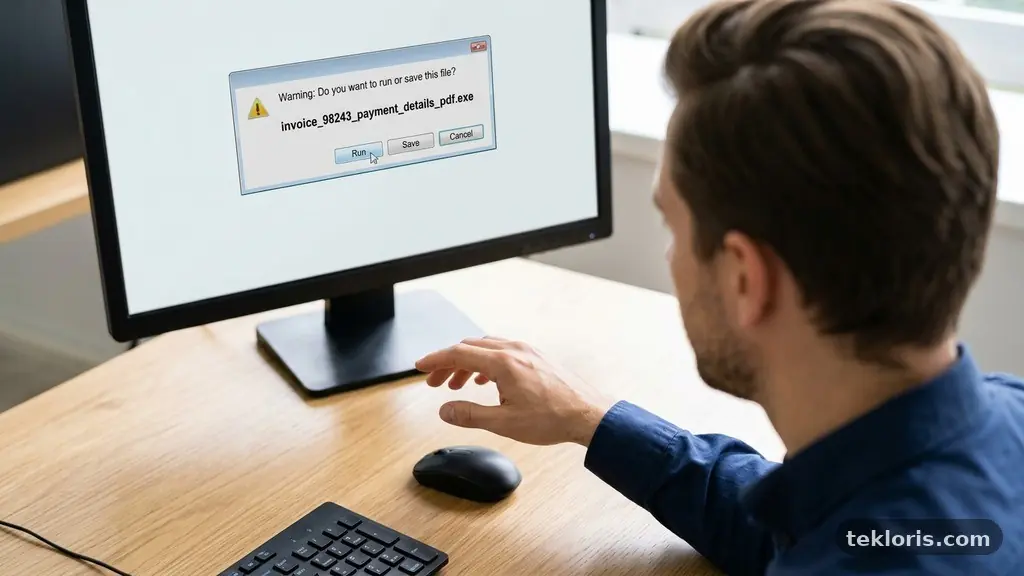
Recognizing Suspicious File Extensions Before Opening Downloads is one of the simplest ways to reduce the chance of installing malware, losing personal data, or falling for a phishing attachment. A filename can look familiar while its final extension reveals that it is actually an executable file, a script, or a compressed archive hiding something dangerous.
The safest approach is to slow down before opening anything, display the complete filename, check whether the file type matches the situation, and verify the sender or download source. A few seconds of inspection can expose double file extensions, misleading icons, and other warning signs before they become a serious problem.
Start With the Final File Extension
The most important rule is simple: inspect the last file extension, not just the words that appear earlier in the filename. In a name such as invoice.pdf.exe, the computer treats .exe as the operative extension, even though the filename is designed to make the document appear to be a PDF.
On Microsoft Windows, common executable file types include .exe, .msi, .scr, .bat, .cmd, .com, and .ps1. Some are legitimate administrative or installation files, but an unexpected executable delivered through email, a chat message, or an unfamiliar website deserves a pause.
Microsoft Windows may hide known file extensions by default, which makes deceptive names much harder to spot. Open File Explorer, select View, choose Show, and enable File name extensions; the exact menu wording can vary slightly by Windows version.
macOS usually displays extensions more openly, but users can still encounter misleading names, unfamiliar application packages, or disk image files. A file ending in .dmg is a disk image, not automatically safe, and an application inside it can still contain unwanted software.
Before opening a download, ask three questions: What is the final extension? Was this file type expected? Does the source have a credible reason to send it? If any answer feels wrong, leave the file unopened until you can verify it through another channel.
Why File Extensions Matter
A file extension helps the operating system decide which application should handle a file. It does not prove that the file is safe, but it gives you an important clue about what the file may attempt to do once opened.
A PDF file generally opens in a PDF reader, while a spreadsheet may use .xlsx or .xlsm. An image might end in .jpg, .png, or .webp. These formats can still contain security risks, especially when software is outdated, but they normally do not function like directly executable programs.
Executable files are different because they can launch code on the device. Installation packages, scripts, and shortcut files can also trigger actions, change settings, download additional components, or ask for elevated permissions.
That distinction explains why an unexpected .exe is more concerning than an unexpected image, even though neither should be trusted automatically. A file called holiday-photo.jpg.exe is especially suspicious because the harmless-looking label is being used to conceal the program format.
| Extension or format | What it commonly represents | Why caution may be needed |
|---|---|---|
.exe |
Windows program | Can run software immediately when launched |
.msi |
Windows installer package | Can install programs or modify system settings |
.js or .vbs |
Script file | May execute commands through Windows scripting tools |
.docm or .xlsm |
Office document with macros | Macros can run code if enabled |
.zip or .rar |
Compressed archive | Can conceal executable files or nested archives |
.dmg |
macOS disk image | May contain an unwanted or impersonated application |
The extension is only one part of the decision. A legitimate installer downloaded directly from a software maker may be appropriate, while the same extension attached to an unexpected invoice is a strong warning sign.
Spot Double Extensions and Disguised Names
Double file extensions are among the oldest tricks in malicious email, yet they remain effective because people often notice the first familiar ending and overlook the last one. Names such as payment-confirmation.pdf.exe, resume.docx.scr, and scanned-image.jpg.cmd are designed to create false confidence.
Spacing and punctuation can make the deception less obvious. A file might appear as invoice.pdf .exe, use several spaces before the final extension, or include a long string of harmless-looking characters that pushes the dangerous part out of view.
Attackers may also use Unicode characters or lookalike letters in names. A filename can resemble the name of a trusted company while using a different character set, unusual punctuation, or a misspelled domain reference.
Warning signs in a filename
- The name contains two or more extensions, especially when the final one is executable.
- The file claims to be an image, invoice, résumé, or PDF but ends in
.exe,.scr,.bat, or a script extension. - The filename includes excessive spaces, random numbers, or a string of unrelated characters.
- The download uses an unexpected shortcut extension such as
.lnk. - The archive contains another archive or a program with a name unrelated to the message.
- The file asks you to disable antivirus software or bypass a warning before it will open.
Icons should never overrule the written extension. A malicious program can use the icon associated with a PDF reader, Word document, or image viewer, making visual inspection alone unreliable.
Right-clicking a file and selecting its properties can reveal additional information, including the file type, size, publisher details, and sometimes a security warning. Properties do not certify safety, but they can expose a mismatch between what the filename suggests and what the operating system identifies.
Treat Archives and Office Files Carefully
ZIP archives deserve special attention because the archive itself may look ordinary while concealing several suspicious file types. A message that says “Please review the attached documents” may contain an archive filled with scripts, shortcuts, or executable files instead of the promised paperwork.
Don’t open an archive and immediately double-click the first item inside. Use the archive utility’s preview function, inspect the complete names, and look for executable endings or nested archives before extracting anything.
A compressed file can also be password-protected. That may seem like a security feature, but criminals sometimes use passwords to prevent email scanners from inspecting the contents.
Microsoft Office macros create another common risk. Files ending in .docm, .xlsm, or .pptm can contain macros, which are small programs embedded in documents.
A macro-enabled file from a known colleague may still be legitimate, particularly in a business process that uses automated spreadsheets. An unexpected macro-enabled attachment that says “enable content” to view a routine invoice should be treated as suspicious.
Modern Office applications often block or restrict macros from files downloaded from the internet. Don’t weaken those protections simply because the document claims to be urgent, overdue, or necessary for payment.
PDF files are not automatically harmless either. Attackers can use them for phishing, malicious links, embedded content, or exploit attempts against outdated readers. A PDF that requests a password, urges you to call an unfamiliar number, or directs you to sign in through a strange website needs independent verification.
Read the Download Context, Not Just the Name
A safe-looking extension can still arrive through an unsafe channel. Malware frequently reaches people through phishing attachments, fake software updates, compromised websites, and messages that imitate a manager, bank, courier, or colleague.
Consider whether you expected the file. If a supplier normally sends invoices through a portal but suddenly sends a ZIP archive from a personal email address, the change in process matters more than the professional-looking logo.
Urgency is another major clue. Messages that demand immediate payment, threaten account closure, or insist that you open an attachment before a deadline are trying to reduce the time available for careful checking.
Inspect the sender address rather than trusting the display name. “Payroll Department” may appear in the message header while the actual address uses a misspelled domain, a free email service, or a subtly altered company name.
Links and attachments should be checked separately. A legitimate-looking message can contain a dangerous file, and a familiar sender’s account may have been compromised.
Verify through a separate channel
If a download involves money, passwords, employment documents, or access to a business system, contact the sender through a known phone number or an established chat thread. Don’t reply to the suspicious message and assume the person behind it will confirm its authenticity.
For software, start from the developer’s official website by typing the address yourself or using a bookmarked page. Avoid download buttons placed in pop-up advertisements, search ads with unfamiliar domains, or pages that bundle unrelated “download managers.”
Phishing campaigns often copy branding accurately, including logos, signatures, and legal disclaimers. The message’s context, sender address, requested action, and file extension together provide a much stronger signal than appearance alone.
Inspect Downloads Without Opening Them
Safe inspection begins with a pause. Don’t double-click a questionable download simply to discover what it is, because opening it may launch code, display a malicious prompt, or exploit a vulnerability in the associated application.
Use your file manager to view the complete name and extension. On Windows, right-click the file and open Properties; on macOS, select the file and press Command-I to view its information panel.
Check the file size and creation details, but interpret them carefully. A tiny installer that claims to be a full video editor is odd, while an unusually large file from an unknown sender may also deserve investigation.
Look at the download location. Files appearing in a temporary folder, a browser cache, or an unexpected shared directory may not be the file you intended to save.
Antivirus software should be enabled and updated before you download or inspect unfamiliar material. Most modern security tools scan files automatically, but an antivirus warning should never be dismissed merely because the document appears to come from a familiar person.
You can also submit a suspicious file to VirusTotal’s file scanning documentation to understand how its multi-engine analysis works. Avoid uploading confidential contracts, personal identity documents, private photographs, or proprietary business files to any public scanning service.
A scan that produces no detection is not a guarantee of safety. New malware may evade scanners, some threats only activate under particular conditions, and a clean result says nothing about whether a website or sender is trustworthy.
Know the Differences Between Windows and macOS
Microsoft Windows has a large ecosystem of executable formats, installers, scripts, shortcuts, and administrative tools. That variety gives attackers many ways to disguise a malicious payload, particularly in email attachments and downloads that imitate business documents.
Windows users should be cautious with .exe, .msi, .scr, .bat, .cmd, .js, .vbs, .ps1, and .lnk files when their source is unexpected. A shortcut file may look like a document but launch a command or redirect to another location.
macOS users face different packaging conventions. Applications often appear as .app bundles, while installers may arrive as .dmg disk image files or .pkg packages.
Those extensions are not inherently malicious. A genuine program from a recognised developer may use them, but an application that arrives through an unsolicited message, asks for an administrator password without a clear reason, or imitates a popular brand should be investigated.
macOS Gatekeeper can warn when an app is from an unidentified developer or has not been notarized by Apple. Don’t bypass that warning because a pop-up tells you to hold a key, change a privacy setting, or run an unfamiliar command in Terminal.
The same principle applies on both systems: operating-system warnings are useful signals, not inconveniences to defeat. If the file’s origin, purpose, and extension do not align, delete it or ask a trusted technical contact to examine it.
Build Safer Download Habits
Recognizing suspicious file types becomes easier when inspection is part of a routine rather than a reaction to panic. Create a habit of downloading software from official sources, keeping applications patched, and storing important files in backups that malware cannot easily alter.
Use separate accounts where practical. A standard user account limits the damage that some threats can cause compared with working every day with administrator privileges, although it cannot replace careful judgment or updated security tools.
Keep file extensions visible permanently. This small change removes one of the concealment techniques that depends on the user seeing a shortened or incomplete name.
Teach family members and colleagues to report suspicious messages without embarrassment. A person who clicked an attachment should disconnect from networks if appropriate, avoid entering more credentials, and contact the organization’s IT or security team quickly.
Ransomware can spread rapidly across shared drives and connected systems, so early reporting matters. Don’t spend time trying to hide a mistake or repeatedly opening the file to see what happens.
A practical pre-opening checklist
- Display the entire filename, including the final extension.
- Confirm that the file type matches the expected document or software.
- Check the sender’s real address and whether the message was expected.
- Look for double extensions, misleading icons, scripts, shortcuts, and executable files.
- Preview archive contents without launching anything inside.
- Verify urgent or financial requests through a separate trusted channel.
- Scan the file with updated antivirus software, while remembering that a clean scan is not proof.
- Delete or quarantine files that cannot be verified.
Backups add resilience, but they should be tested and protected. A backup that remains permanently connected and writable may also be encrypted by ransomware.
Finally, keep your browser, operating system, PDF reader, Office applications, and archive tools updated. Security patches close weaknesses that malicious files may otherwise exploit, reducing the importance of perfect recognition in every individual case.
Frequently Asked Questions
Is every .exe file dangerous?
No. The .exe extension identifies a Windows executable, and many legitimate applications use it. The risk depends on the source, expected purpose, digital signature, download location, and whether the file behaves as promised; an unexpected executable in an email should be treated as unsafe until verified.
Can a PDF contain malware?
Yes, although opening a PDF does not automatically mean the device will be infected. A malicious PDF may exploit an outdated reader, contain deceptive links, or use a fake sign-in page, so keep the reader updated and avoid files from unknown or unexpected sources.
Should I open a ZIP file if the email looks professional?
Not without checking the context and contents first. A ZIP archive can conceal scripts, shortcuts, or executable files, and professional branding is easy to copy; preview the archive, verify the sender independently, and scan it before extracting anything.
What should I do if I already opened a suspicious download?
Stop interacting with the file, disconnect from the internet if you suspect active malware, and contact your organization’s IT or security team. Change important passwords from a separate trusted device if credentials may have been exposed, and don’t ignore unusual pop-ups, new applications, disabled security tools, or unexplained system activity.
Is a file safe if antivirus software says it is clean?
No scan can guarantee safety. Antivirus software may miss brand-new malware or files that rely on social engineering rather than malicious code, so combine scanning with source verification, extension checks, current software, and cautious handling of unexpected content.
Make the Check Before the Click
Recognizing Suspicious File Extensions Before Opening Downloads starts with one dependable habit: reveal the full filename and inspect the final extension. Treat unexpected executables, double file extensions, macro-enabled documents, archives, and disk image files as prompts to verify rather than invitations to open.
Keep software updated, leave security warnings enabled, and confirm unusual requests through a trusted channel. A brief pause before opening a download can protect your accounts, devices, and the people connected to them.