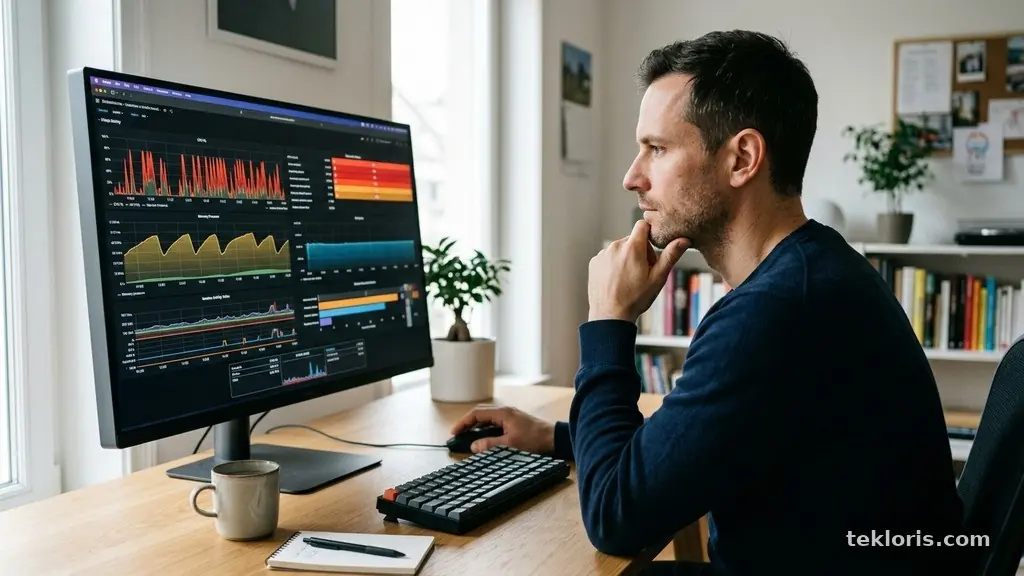
Your computer may feel slow even when storage space is available because free capacity is only one part of system performance. A machine can have hundreds of gigabytes unused and still struggle with high CPU usage, limited RAM, overheating, failing hardware, or too many background processes.
The good news is that sluggishness usually leaves clues. By checking a few built-in performance indicators and matching symptoms to likely causes, you can often find the bottleneck without deleting personal files or buying new hardware.
The Short Answer: Free Storage Is Not the Same as Fast Performance
Available storage tells you how much room remains for files, applications, updates, and temporary data. It does not tell you whether the processor is overloaded, whether RAM utilization is too high, or whether the storage device can read and write data quickly.
Think of a computer as a small workplace. Storage is the filing cabinet, RAM is the desk, and the CPU is the person doing the work. A large filing cabinet does not help much if the desk is covered with open projects or the worker is already handling too many tasks.
A system may run slowly even with plenty of free space for several specific reasons:
- High CPU usage: An application, update, browser tab, or system service may be consuming most processing capacity.
- Insufficient RAM: The computer may be moving data between memory and storage through virtual memory.
- High disk usage: A drive can be busy, slow, fragmented, unhealthy, or overwhelmed by background tasks.
- Startup programs: Too many applications may launch automatically and compete for resources immediately.
- Overheating: Thermal throttling can force the processor to run below its normal speed.
- Malware and viruses: Unwanted software can consume resources, display ads, or perform hidden work.
- Outdated drivers: Poorly functioning graphics, network, or storage drivers can cause delays and instability.
The first useful question is not “How much storage do I have?” but “Which resource is reaching its limit?” Windows users can begin with Task Manager by pressing Ctrl + Shift + Esc, while macOS users can open Activity Monitor. Watch CPU, memory, disk, and energy activity while the slowdown is happening, not several minutes after it disappears.
CPU Usage Can Make Simple Tasks Feel Heavy
The CPU handles calculations, application instructions, system services, and many browser activities. If CPU usage stays near its maximum, even opening a folder or switching windows can feel delayed because ordinary actions must wait their turn.
Task Manager can show which process is using the processor. Sort the Processes view by CPU and observe the list for a minute or two. A video call, game, photo export, antivirus scan, or software installer may explain a temporary spike, while an unknown process that remains high deserves closer attention.
Not every high CPU reading means something is broken. Modern computers briefly use substantial processing power during startup, operating system updates, file indexing, and application launches. The concern is a sustained load that continues after the demanding task should have finished.
Browsers are a common source of hidden CPU demand. A single page with animated advertising, an online meeting, a web application, or a badly behaved extension can keep processing activity elevated even when the browser appears idle.
How to interpret processor readings
A CPU percentage is useful only when paired with context. If one application uses 90 percent and the computer becomes responsive after closing it, you have a strong lead. If total CPU use remains modest but the machine still pauses, memory pressure, storage activity, drivers, or hardware health may be more important.
Older processors can also feel slow because newer software expects more performance than the hardware can provide. A basic laptop that handles email well may struggle with high-resolution video editing, dozens of browser tabs, or modern collaboration software, even if its storage drive is mostly empty.
Check whether the slowdown affects every application or only one. If only a specific program is sluggish, update it, review its extensions and settings, and look for unusually large files or projects. If every action is delayed, examine the whole system rather than blaming one application.
RAM Pressure Forces the Computer to Borrow Space
RAM holds the information that active programs need right now. When available memory becomes scarce, the operating system moves less-used data to a storage area called virtual memory, then retrieves it when needed.
That exchange is much slower than working directly in RAM. The drive may have plenty of free capacity, but the computer still feels slow because it is repeatedly transferring data between memory and storage.
High RAM utilization often appears as delayed window switching, browser tabs reloading, long pauses after opening an application, and noticeable activity from the storage drive. On Windows, Task Manager displays memory use; on macOS, Activity Monitor shows memory pressure with additional details about compressed memory and swap.
Modern browsers can consume substantial memory because each tab, extension, and web application may run in a separate process. A dozen ordinary tabs might be manageable on one computer but overwhelming on another with less RAM or more demanding software running at the same time.
Reducing memory pressure
Close applications you are not using instead of leaving every project open indefinitely. Browser features such as sleeping tabs can reduce background memory use, though they may reload content when you return.
Disable extensions you rarely need and check for applications that remain active after their windows close. Messaging clients, cloud-sync tools, game launchers, and creative software often continue running in the background.
If memory remains nearly full during normal work, adding RAM may help more than replacing the storage drive. This depends on the computer’s design, because some thin laptops have memory soldered to the motherboard and cannot be upgraded.
| Symptom | Likely resource issue | Useful first check |
|---|---|---|
| Apps pause when switching between them | High RAM utilization | Review memory and swap activity |
| Everything responds slowly at once | CPU, disk, heat, or system process | Compare CPU and disk readings in Task Manager |
| Programs open slowly but then work normally | Storage speed or drive activity | Check disk usage and drive type |
| Performance drops after several minutes | Overheating or thermal throttling | Check vents, fan noise, and temperatures |
Disk Usage and Drive Health Matter More Than Capacity
Storage capacity measures space, while storage performance measures how quickly data can be read and written. Two drives can have the same free capacity and behave very differently if one is a modern SSD and the other is an aging mechanical hard drive.
A traditional hard disk uses spinning platters and a moving read/write head. When files are scattered across different areas, the drive may need to seek repeatedly, which contributes to hard drive fragmentation and slower access. Defragmentation can help some mechanical drives, but it should not be applied manually to an SSD in the same way.
SSDs usually provide faster access because they have no moving parts. They can still slow down when nearly full, when background maintenance is occurring, or when the drive is developing errors. SSD health tools may report wear, temperature, remaining life estimates, or warning conditions.
Disk usage in Task Manager refers to how busy the drive is, not how full it is. A drive can show 100 percent active time while transferring a modest amount of data if requests are small, scattered, or delayed by a weak mechanical drive.
Storage symptoms that deserve attention
Repeated freezing, clicking sounds from a mechanical drive, disappearing files, corrupted documents, or unusually long boot times should be treated seriously. Back up important files before attempting repairs, because a failing drive can deteriorate during intensive diagnostic work.
Freeing space can still help when the system drive is almost full. The operating system needs room for updates, temporary files, caches, and virtual memory, but deleting files will not fix a CPU bottleneck or inadequate RAM.
Use the operating system’s built-in storage tools to remove temporary files safely. Avoid aggressive “cleaner” programs that promise dramatic speed improvements by deleting registry entries or unknown system files.
For official storage and performance troubleshooting on Windows, Microsoft’s PC performance recommendations provide a safer starting point than random optimization utilities.
Background Processes and Startup Programs Add Constant Load
Many applications install background processes so they can synchronize files, check messages, deliver notifications, or prepare for faster launches. Each process may seem small, but several dozen can consume meaningful CPU time, memory, network bandwidth, and disk activity.
Startup programs are especially noticeable because they all begin competing for resources immediately after login. A computer may appear frozen for several minutes while cloud storage, messaging tools, update services, and vendor utilities launch together.
Review the Startup section in Windows Task Manager or Login Items in macOS System Settings. Disable automatic launch for programs you do not need right away, but leave security software, touchpad utilities, hardware controls, and essential system services alone unless you know their purpose.
Cloud synchronization can also create temporary slowdowns. If a large folder is uploading thousands of photos, the service may generate heavy disk usage and network activity while scanning each file.
A safer cleanup approach
Begin with applications you recognize. Turn off one or two nonessential startup entries, restart the computer, and see whether the boot process improves.
Uninstall software you no longer use rather than simply deleting its shortcut. A program may continue running services after its desktop icon is gone.
Pay attention to timing. If the computer is slow only during the first five minutes after signing in, startup activity is a likely explanation. If it slows after a particular application opens, investigate that application’s settings and updates instead.
Heat, Malware, Drivers, and Updates Can Hide Behind Slowness
Overheating is a frequent cause of performance drops that appear mysterious. When internal temperatures rise, the processor may activate thermal throttling, reducing its clock speed to protect the hardware.
Dust-filled vents, blocked air intakes, a failing fan, or use on a soft surface can restrict cooling. A laptop that runs quickly for ten minutes and then becomes sluggish may be responding to heat rather than storage limits.
Keep vents clear and place the computer on a hard, flat surface. If the fan is constantly loud or the case becomes unusually hot, use a reputable temperature-monitoring utility or have the machine inspected instead of repeatedly forcing demanding workloads.
Malware and viruses can also consume CPU, memory, disk, and network resources. Unexpected pop-ups, unfamiliar browser extensions, disabled security tools, sudden battery drain, or unknown processes strengthen the case for a security scan.
Run a full scan with the computer’s trusted built-in security software. Do not install several antivirus products at once, because they can conflict and create their own performance problems.
Why updates and drivers matter
Operating system updates often contain performance fixes, security patches, and compatibility improvements. They may temporarily make a computer busy while installing or indexing files, but a permanently outdated system can suffer from bugs that newer software no longer accommodates.
Outdated drivers can affect graphics performance, wireless connections, audio, storage controllers, and external devices. Obtain drivers from the computer manufacturer or the component maker rather than from download sites that bundle questionable utilities.
If the slowdown began immediately after an update, check whether a restart is pending or whether a recently updated driver is malfunctioning. Record the timing before changing several settings, because one clear symptom is easier to investigate than a collection of simultaneous changes.
A Practical Way to Diagnose the Bottleneck
Diagnosis works best when you observe the computer during the exact activity that feels slow. Open the affected application, reproduce the delay, and then check CPU, memory, disk, and network readings.
Write down the process at the top of each category. A simple note such as “browser: 85 percent CPU during video call” is more useful than a vague impression that the computer is old.
Use this sequence to narrow the cause:
- Reproduce the slowdown: Note whether it occurs during startup, browsing, file copying, gaming, video calls, or every activity.
- Check CPU usage: Look for a process that remains unusually high rather than a brief spike during normal loading.
- Check RAM utilization: Watch for nearly full memory, compressed memory, or frequent swapping and tab reloads.
- Check disk usage: Identify whether the drive is constantly active and which process is causing the activity.
- Check temperatures and noise: A sudden performance decline after sustained use can point to cooling trouble.
- Review recent changes: Consider new software, updates, drivers, peripherals, or browser extensions installed before the problem began.
- Back up important files: Do this before repairing, resetting, or testing a drive that shows warning signs.
Try one change at a time. If you disable five startup programs, install a cleaner, update drivers, and change virtual memory together, you will not know which action helped or caused a new problem.
Safe Mode or a clean boot can help separate essential system components from third-party software. If the computer becomes responsive under those conditions, a startup application, driver, or background service is more likely responsible.
Hardware age also matters. A computer with a low-power processor and limited RAM may be functioning correctly while simply falling short of current application demands. In that situation, sensible upgrades or a lighter workload may help more than repeated software cleanup.
Fixes That Usually Help Without Risky Tweaks
Start with low-risk actions: restart the computer, install pending operating system updates, close unused applications, and remove unnecessary startup programs. These steps address common resource pressure without changing sensitive system settings.
Keep browsers under control by closing unused tabs, removing extensions you no longer recognize, and clearing the browser cache when it has become unusually large or corrupted. Clearing the cache will not repair every slowdown, and it may make the first visit to some sites slightly slower while files are downloaded again.
Maintain backups before making hardware or system changes. A slow computer is inconvenient, but lost photos, documents, or work files can be far more damaging.
For a mechanical drive, regular free space and appropriate optimization may improve responsiveness. For an SSD, focus on firmware, health warnings, adequate free capacity, and reliable backups rather than traditional defragmentation.
Upgrade only after identifying the limit. More RAM helps memory pressure, an SSD helps slow storage access, and better cooling helps thermal throttling. Replacing the drive will not solve a weak processor, while adding RAM will not fix malware.
Questions Readers Often Ask
Can a computer be slow with half of its storage empty?
Yes. Free storage does not measure CPU load, RAM availability, drive response time, temperature, or malware activity. A computer can have abundant empty space while its memory is full or its processor is stuck handling one demanding process.
Does deleting large files make a computer faster?
It can help if the system drive was nearly full and lacked room for temporary files, updates, or virtual memory. Deleting files will not normally improve performance when storage already has comfortable free space and another resource is overloaded.
Should I defragment an SSD?
Do not manually defragment an SSD with old disk-optimization tools. Modern operating systems generally manage SSD maintenance differently, and the storage device may perform background operations designed for flash memory.
Why does my computer slow down after it has been running for a while?
A gradual decline can indicate overheating, a memory leak, accumulating background processes, or a scheduled scan or synchronization job. Check temperatures, memory use, and active processes immediately after startup and again when the slowdown appears.
When should I replace the computer?
Consider replacement when the processor, RAM, and storage all fall short of your normal workload, or when repairs cost more than the machine’s practical value. Before deciding, confirm that an SSD, additional RAM, or a clean operating system installation cannot address the actual bottleneck.
Small Clues Often Lead to the Right Fix
Your Computer May Feel Slow Even When Storage Space Is Available because storage capacity is only one measurement in a much larger performance picture. Check CPU usage, RAM utilization, disk activity, temperatures, startup programs, drivers, and security status while the problem is occurring.
Once you identify the resource under pressure, choose the fix that matches it: reduce background work, improve cooling, update software, replace an unhealthy drive, or add memory. Make one careful change at a time, protect your important files, and let the evidence guide the next step.